Whether you’re a designer or you’re getting a design, it’s important to know the difference between RGB vs. CMYK color modes so you can plan and optimize each stage of the design process. That goes beyond just knowing what the letters stand for – spoiler alert: they’re mostly colors! – because it’s more about knowing which one is the best for your design project.
Depending on where and how the final result is displayed, one color space is always better than the other.
Never fear these acronyms again: We’re going to explain what the RGB and CMYK color modes are, how they work and when it’s best to use each.
- RGB is best for digital designs, including websites, social media, digital ads and screen-based graphics.
- CMYK is best for printed materials, including business cards, flyers, posters, packaging and branded merchandise.
- Some bright RGB colors can look duller in CMYK because screens use light and printers use ink.
- Soft proofing and hard proofing can help you preview how colors may print before placing a full order.
- For print, rich black and standard black create different effects, so it’s worth choosing the right one for your design.
What is the difference between RGB and CMYK?
Both RGB and CMYK are modes for mixing colors in graphic design. As a quick reference, the RGB color mode is best for digital work, while CMYK is used for print products. But to fully optimize your design, you need to understand the mechanisms behind RGB vs. CMYK. Let’s dive deeper.
What is RGB?
RGB stands for Red, Green, Blue, which are the primary colors of light. In the RGB color model, these three colors are combined in various ways to create a broad spectrum of colors. This model is widely used in electronic displays – when you look at a computer screen, a phone display or even your snazzy smartwatch, you’re seeing the magic of RGB at work.

RGB and additive mixing
Every digital screen is made up of thousands (sometimes millions) of tiny squares called pixels. Each pixel contains three even tinier lights: one red, one green and one blue of various intensity from 0 to 255. Mix all three at full blast (255, if we’re being technical), and you get pure white. Turn them all off, and you’re back to black.
The process of tweaking the brightness of these three lights is called additive mixing, and you can create 16.7 million possible colors using different RGB combinations.
When to use RGB?
If the end destination of your design project is a digital screen, use the RGB color mode. This would go for anything that involves computers, smartphones, tablets, TVs, cameras, etc.
Turn to RGB over CMYK if your design project involves:
- Web and app design
- Icons
- Buttons
- Graphics
- Branding
- Online logos
- Online ads
- Social media
- Images for posts
- Profile pictures
- Profile backgrounds
- Visual content
- Video
- Digital graphics
- Infographics
- Photographs for websites, social media or apps
What are the best file formats for RGB?
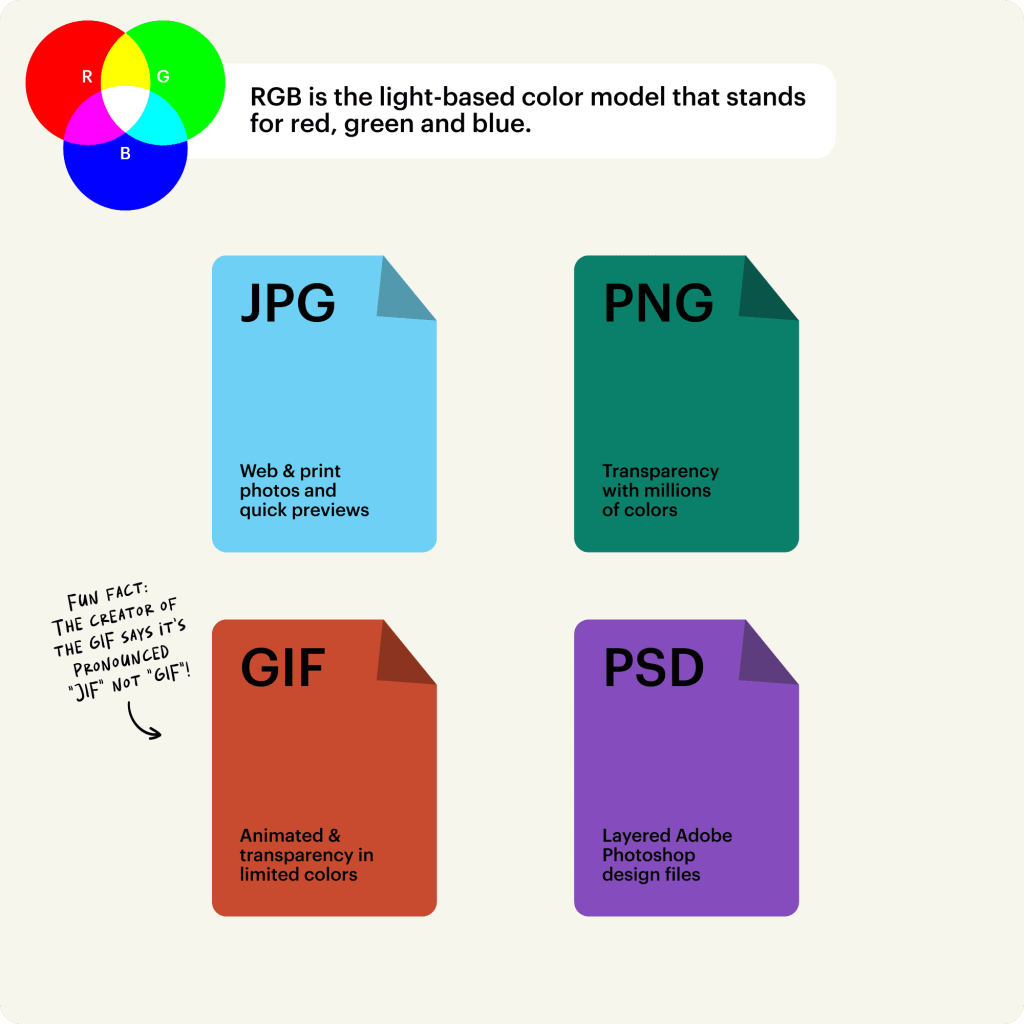
RGB file formats
JPEGs are ideal for RGB files because they’re a nice middle-ground between file size and quality, and they’re readable almost anywhere.
PSD is the standard source file for RGB documents, assuming anyone using the files is working with Adobe Photoshop.
PNGs support transparency and are better for graphics that need to be superimposed over others. Consider this file type for interface elements like buttons, icons or banners.
GIFs capture motion, so if you’re using an animated element, such as an animated logo or a bouncing icon, this file type would be ideal.
It’s best to avoid TIFF, EPS, PDF and BMP for RGB purposes. These formats are not compatible with most software, not to mention they can be unnecessarily large in terms of data.
What is CMYK?
CMYK stands for cyan, magenta, yellow and key (which stands for black, because “B” was already taken by blue in RGB), and it’s the go-to color model for color printing. Unlike the RGB model, which adds light to create colors, CMYK works by subtracting light absorbed by inks.

CMYK and subtractive mixing
Imagine each ink color as a filter:
- Cyan (C): This greenish-blue hue absorbs red light and is one of the primary printing inks.
- Magenta (M): A purplish-pink color that absorbs green light, magenta is another key player in the printing process.
- Yellow (Y): This bright, sunny color absorbs blue light, rounding out the trio of primary colors in CMYK.
- Key (K) or black: The black ink, known as “key” because it provides the key detail and contrast, absorbs all colors of light. It’s essential for adding depth and sharpness to printed images.
The more ink you layer on, the less light gets through, which is why mixing these colors results in darker shades. In CMYK, colors are measured in percentages. When you lay down all four colors in high percentages, you achieve a rich, deep black.
When to use CMYK?
Use CMYK for any project design that will be physically printed, not viewed on a screen. If you need to recreate your design with ink or paint, the CMYK color mode will give you more accurate results.
Turn to CMYK instead of RGB if your project involves:
- Branding
- Business cards
- Stationery
- Stickers
- Signs and storefronts
- Advertising
- Billboards
- Posters
- Flyers
- Vehicle wraps
- Brochures
- Merchandise
- T-shirts, hats and other branded clothing
- Promotional swag (pens, mugs, etc.)
- Essential print materials
- Product packaging
- Restaurant menus
Designing for print means being aware of how much ink you’re laying down. Overdoing it can cause smudging and even tearing of the paper. That’s why designers often use variations like cool black (C: 60%, M: 0%, Y: 0%, K: 100%), warm black (C: 0%, M: 60%, Y: 30%, K: 100%), or designer black (C: 70%, M: 50%, Y: 30%, K: 100%) for different effects and materials, or depending on the latest color trends.
Standard black vs. rich black
Standard black usually means 100% K, using black ink only. It’s best for things like small text, fine lines and details because it keeps edges nice and crisp.
Rich black uses black plus percentages of cyan, magenta and yellow. A common example is C: 60%, M: 40%, Y: 40%, K: 100%. It can create a deeper, fuller black for large background areas, posters or premium print designs.
What are the best file formats for CMYK?

CMYK file formats
PDFs are ideal for CMYK files because they are compatible with most programs.
AI is the standard source file for CMYK, assuming anyone working with the files is using Adobe Illustrator.
EPS can be a great source file alternative to AI because it is compatible with other vector programs.
All things considered, it’s always best to consult your printer beforehand to find out which file format they prefer.
How to set up RGB vs. CMYK color modes in design programs
If you’re using Adobe software, here’s how to set up your color mode for a new project.
How to set the color mode in Photoshop
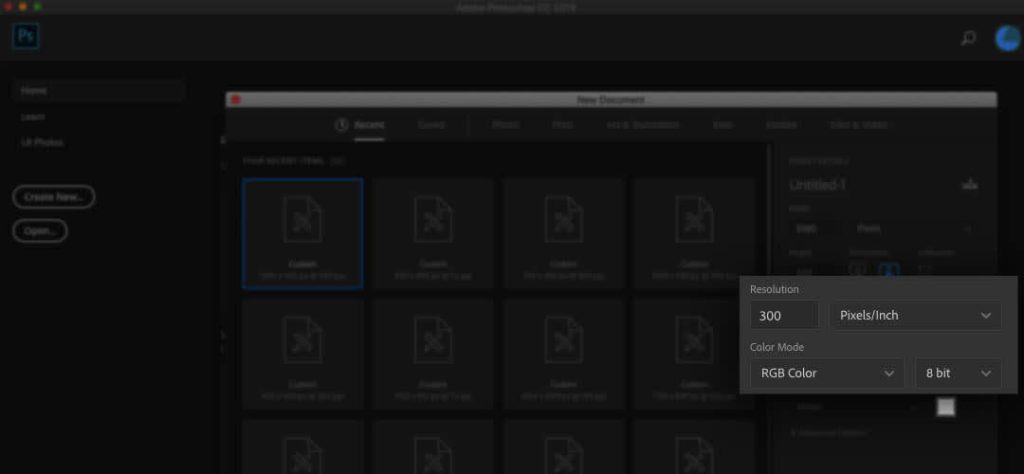
The Color Mode setting in Photoshop is included in the New Document window
When you create a new document in Photoshop, the color mode option will be included with other parameters in the New Document window.
How to set the color mode in Illustrator
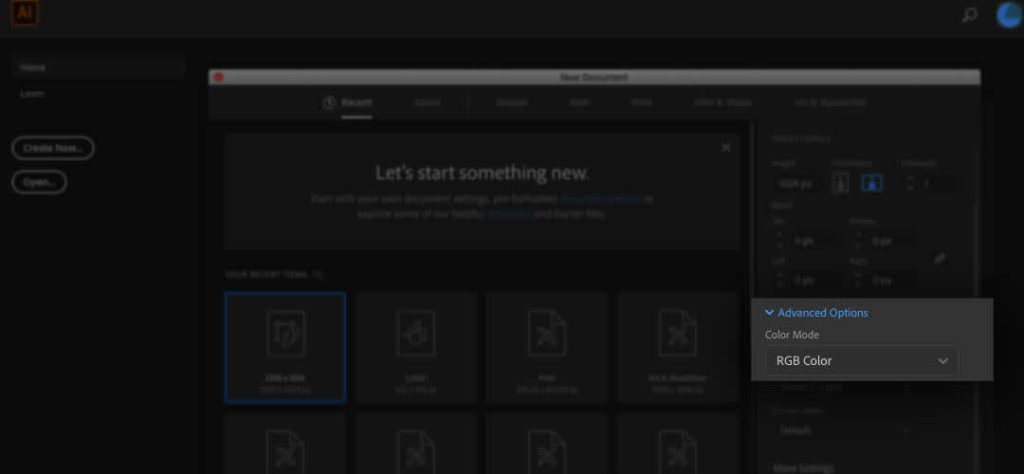
The Color Mode setting in Illustrator is hidden within the Advanced Options menu in the New Document window
When you create a new document in Illustrator, the color mode option will be hidden under the Advanced Options collapsible menu. Click on the arrow to expand this menu.
How to set the color mode in InDesign
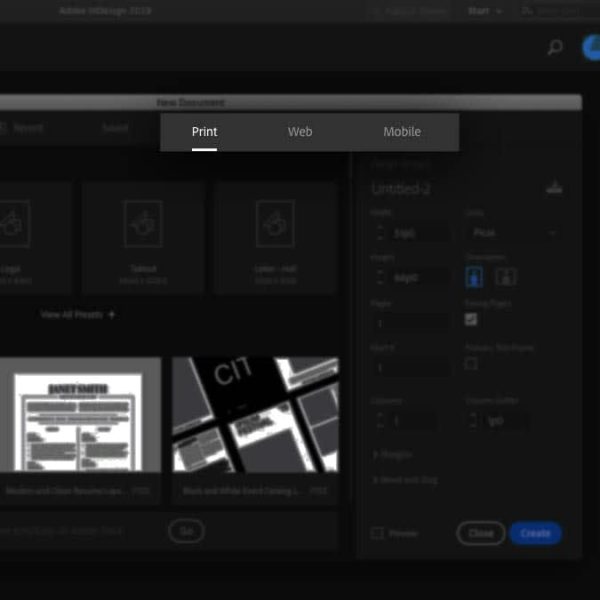
The color mode is automatically set depending on whether you choose a Print (CMYK) or Web/Mobile (RGB) document
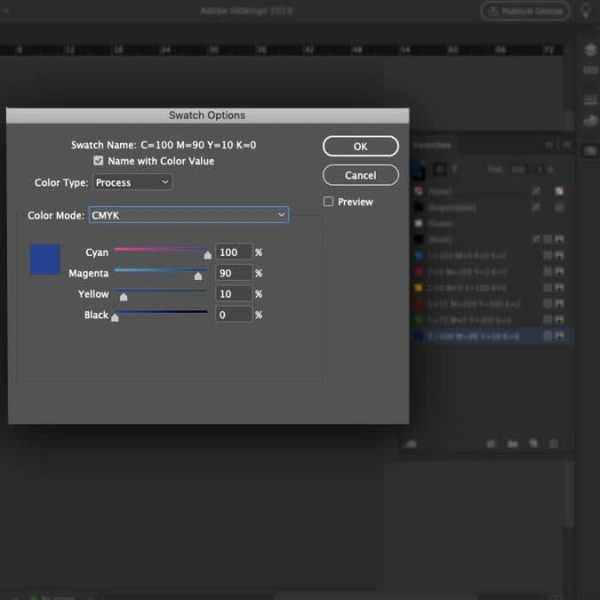
You can set the color space of individual swatches by using the Color Mode dropdown menu in the Swatch Options panel
InDesign automatically sets the default color mode depending on which type of document you choose (either in the print or web/mobile category, which translates to CMYK or RGB, respectively).
When you work with colors inside the program, you’ll notice that swatches will already be measured in RGB or CMYK values, depending on which type of document you are working in. Because InDesign allows you to mix color spaces, you can change the color mode of individual swatches whenever you create one, but in general, it is best to keep colors consistent.
How to check whether your document is in RGB or CMYK mode
Since RGB and CMYK aren’t interchangeable, it’s important to be 100% certain about the color mode you’re working in. Printing an RGB file instead of converting it to CMYK can lead to some… interesting results, and not in a good way.
RGB colors often appear brighter and more vivid because they’re created with light. However, printers can’t replicate this exact vibrancy with ink. When you print in RGB, the printer has to convert those colors to its closest CMYK equivalent. This conversion process isn’t perfect and can cause your colors to look muted or even drastically different. That electric blue on your screen? It might turn out as a duller, less exciting blue on paper.
Moreover, certain colors in RGB simply don’t exist in the CMYK spectrum. Neon colors, for example, are notorious for looking fantastic on screen but failing to impress in print. This is because RGB can produce millions of aesthetic colors by blending light, while CMYK’s ink combinations are more limited.
Modern screens can also make the difference feel more dramatic. Many newer phones, laptops and monitors use wide-gamut display technology, such as Display P3, which can show more vivid colors than older screens.
That means a bright RGB design might look great on your device, but then it’s more muted once it’s converted for CMYK printing.
In practical terms, here’s what happens when you try to print an RGB file instead of CMYK:
- Color shifts: Bright and neon colors lose their pop.
- Duller prints: Overall, your print might look less vibrant.
- Unexpected results: Some colors might change entirely, leading to a less accurate representation of your original design.
To avoid such mishaps, make sure you’re working in the correct mode.
If you can’t remember what mode you set your document to or if you are working with someone else’s file, here’s how you check the color mode.
Why AI-generated colors can shift in print

Vibrant AI art via Depositphotos
Many AI image tools create artwork in RGB, often with very bright, saturated colors.
But the same RGB-to-CMYK issue still crops up. When the file is converted to CMYK, some of that brightness may get lost because standard print inks can’t reproduce every color a screen can display. That’s why, before printing AI-generated artwork, it’s best to convert the file to CMYK, check for any color shifts and use a proof if the design depends on very specific colors.
How to check the color mode in Photoshop

Image > Mode
In Photoshop, the color mode is listed in parentheses in the document’s tab. You can also find it by navigating to Image > Mode. The document’s color mode will have a checkmark next to it.
How to check the color mode in Illustrator

File > Document Color Mode
In Illustrator, the color mode is listed in parentheses in the document’s tab. You can also find it by navigating to File > Document Color Mode. The document’s color mode will have a checkmark next to it.
How to check the color mode in InDesign
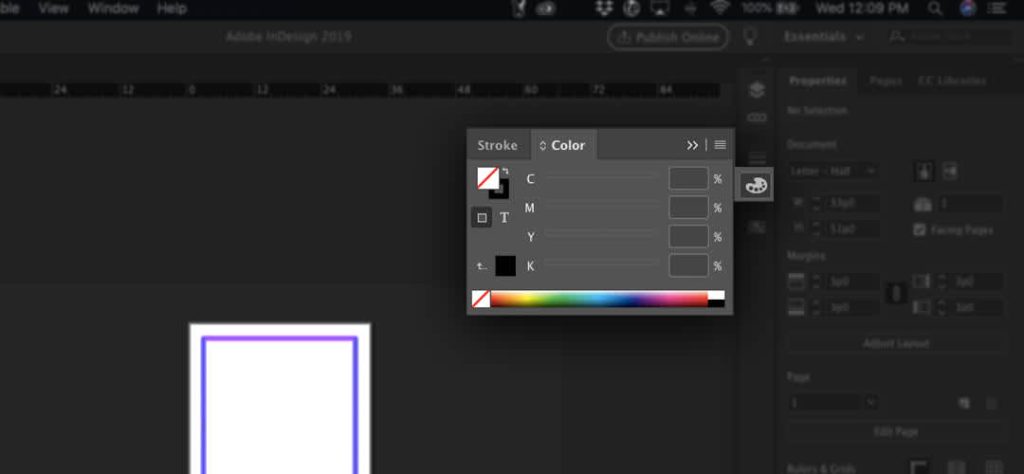
CMYK color mode is shown in the Colors panel
One easy way to check the color mode in InDesign is to use the Color panel. Navigate to Window > Color > Color to bring up the Color panel if it is not already open. You will see colors measured in individual percentages of CMYK or RGB, depending on your document’s color mode.
How to proof colors before printing
The last thing you want is to print off 500 copies only to realize the colors aren’t quite right. That’s why, before you go ahead and print, it’s important to test your colors.
There are two ways to proof before printing:
- Soft proofing
- Hard proofing
What is soft proofing?
Soft proofing is a digital preview that uses color profiles, which are often ICC profiles, to simulate what your design might look like when it’s converted for print. You can do this with design programs like Adobe’s Photoshop. It’s not a perfect match for a physical proof, but it can help you catch any obvious errors early.
What is hard proofing?
A hard proof is a physical test print. It’s a more reliable way to check your colors than an on-screen preview because it shows how ink, paper stock, finish and printer settings will affect the final result.
It also gives you the confidence of seeing what it will look like in real life before you commit to printing large numbers.
When should you use each?
Both of these methods have their uses, but it really depends on what matters to you most.
- Use soft proofing when you want a quick check before exporting or sending artwork to print.
- Use hard proofing when color accuracy really matters, such as for brand colors, packaging, signage or a large print run.
How to convert between RGB and CMYK
Some of you may be thinking, “Well, this article would have come in handy when I first started the project!”
Don’t despair. Yes, it’s important to start a project in the correct format, but it’s still possible to convert between RGB and CMYK if you need to.
Be prepared for the colors to look different (darker or lighter due to additive or subtractive mixing). In addition to changing the document’s color space, you may need to change the colors themselves to find an approximation of what you had before.
Here’s how to use design software to convert between RGB vs. CMYK color modes.
How to change the color space in Photoshop

Edit > Convert to Profile

Use the Destination Space dropdown menu to change the color mode
To change the color mode of your Photoshop document, navigate to Edit > Convert to Profile. This will bring up a dialogue box. What you want to pay attention to is the Destination Space field. Use the dropdown to select your desired color mode.
There are different libraries of RGB and CMYK colors, which is why you will see multiple options. For general purposes, the first two options are fine, but you may want to check with your printer beforehand to be sure of what they need.
If your image is not already flattened, check the Flatten Image to Preserve Appearance box, as your colors may not come out as well in multiple layers with blending/transparency between them. Once you’re ready, hit OK, and you will see the color mode information change in the tab at the top of your document.
How to change the color space in Illustrator
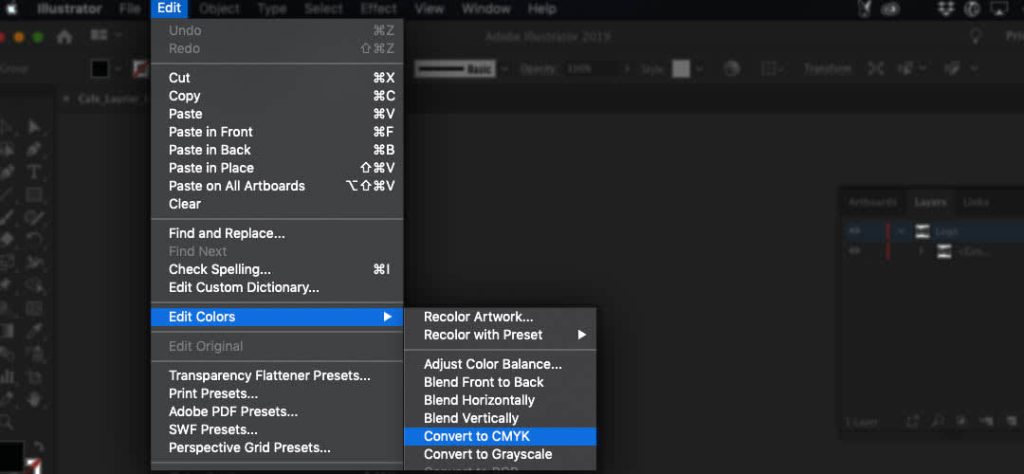
Edit > Edit Colors, select the color space you want to convert to
To change the color mode of your Illustrator file, select all objects in your document. Navigate to Edit > Edit Colors and select your desired color space.
How to change the color space in InDesign
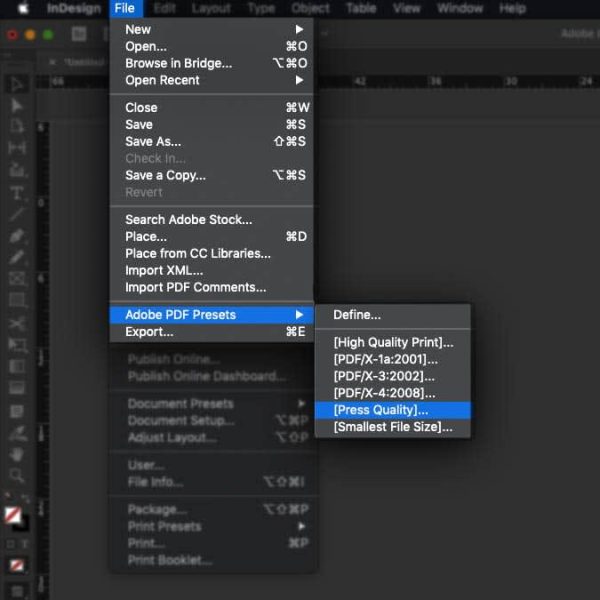
File > Adobe PDF Presets > [Press Quality]

Select Output on the left side and use the Destination dropdown menu to convert the color mode
You can change the color mode of your InDesign document in the export process. Navigate to File > Adobe PDF Presets > [Press Quality] and select a save destination. In the Export Adobe PDF pop-up box, select Output on the left side and use the Destination dropdown menu in the Color section to choose your desired color mode.
This method can be helpful in a pinch, but if you are working with a lot of different images, it is best to change the image’s color mode through its native program (like Photoshop or Illustrator), assuming they have been linked.
Know your color modes
Knowing how the colors interact to define a pigment can give you greater control over how the final color looks and, therefore, greater control over your final design. The more you work within a particular color mode, the better you’ll get at predicting how the design file will translate to an end product. That’s why, if you want picture-perfect colors every time, it’s best to hire a professional designer through VistaPrint’s Design Services.
Frequently asked questions
Is it better to design in RGB or CMYK?
Use RGB for anything that will be viewed on a screen, like websites, social media graphics, digital ads and videos. Use CMYK for anything that will be printed, like business cards, flyers, posters, packaging, menus and stickers.
What happens if I print an RGB file?
The printer will convert the RGB colors into CMYK. Some colors may print accurately, but bright or highly saturated shades can look duller, darker or less vibrant. To avoid any surprises, convert your file to CMYK before printing and check how the colors change.
Can you convert RGB to CMYK without losing color?
You can convert RGB to CMYK, but some color change is normal. RGB can display brighter colors than CMYK can recreate with ink. If color accuracy matters, proof your design before printing.
Why does my blue look purple when printed?
Blue can look purple in print when there’s too much magenta in the CMYK mix. This can happen when bright RGB blues are converted for print. Check the CMYK values before printing and reduce the magenta if the blue is leaning too purple.
Does Canva use RGB or CMYK?
Canva is often used for digital RGB designs, but it also offers CMYK options for print. If you’re designing business cards, flyers or other print materials in Canva, use CMYK colors where available and download your file as a print-ready PDF.