The right business card design software can help you create a polished, print-ready card without turning a five-minute job into an afternoon of wrestling with menus. The trick is choosing a tool that matches your experience, available time and budget.
Some small business owners want an editable template they can personalize and send straight to print. Others need the precise image, typography and color controls found in professional software. This guide compares both routes, along with familiar office programs, and shows you how to prepare your finished file so your card looks as sharp on paper as it does on screen.
- Selecting the right business card design software depends on your design skill level, time constraints and budget.
- Online template tools like VistaPrint and VistaCreate offer intuitive DIY customization with integrated high-quality printing.
- Word processors like Microsoft Word and Google Docs handle simple layout needs, while Adobe Photoshop and Illustrator provide advanced creative control for professionals.
- Proper file setup, including 300 DPI resolution, CMYK color profiles, bleed lines and safe margins, is essential to prevent print alignment errors.
Quick comparison of top business card design software
The best tool is the one that balances ease of use, customization, budget and print readiness for your project. A free or familiar program may be enough for a simple text-based card, while dedicated business card design software gives you more control over branding and production.
| Tool | Skill level | Key features | Customization level | Integrated printing |
|---|---|---|---|---|
| VistaPrint online editor | Beginner | Templates, QR code creation, canvas guides and print preview | Medium | Yes, direct ordering |
| VistaCreate | Beginner to intermediate | Brand Kits, Styles, Background Remover and multi-format templates | Medium to high | Yes, direct print export |
| Microsoft Word | Beginner | Templates, gridlines, text boxes and local print setup | Low | No; print locally or export |
| Google Docs | Beginner | Cloud collaboration, tables and simple text formatting | Low | No; print locally or export |
| Adobe Photoshop | Advanced | Raster editing, photo retouching, resolution and color controls | High | No; file export required |
| Adobe Illustrator | Professional | Vector paths, artboards, precise typography and press-ready PDFs | High | No; file export required |
Professional tools will take longer to learn, but they make sense when you need original artwork or exact control over every element.
For most beginners, a print-integrated editor is the simplest choice because the template is already built around the product’s dimensions.
Create quickly with template-integrated design tools
Online tools are among the top-rated business card creators for owners who want a professional result without professional training. You start with correctly sized templates and edit them through familiar controls.
VistaPrint online design tool: Step-by-step tutorial
VistaPrint’s online editor connects design and printing in one workflow, making it a practical starting point for beginners with zero graphic design experience.
- Select a template or upload your design. Browse by industry, style or layout and choose a design with enough space for your logo and contact details. Alternatively, begin with a blank canvas or upload finished artwork.

- Personalize the text, fonts and colors. Replace the sample copy, adjust its size and alignment and choose fonts that fit your identity. Keep the business name prominent, make contact details easy to scan and enter custom CMYK color values directly where the editor supports them.

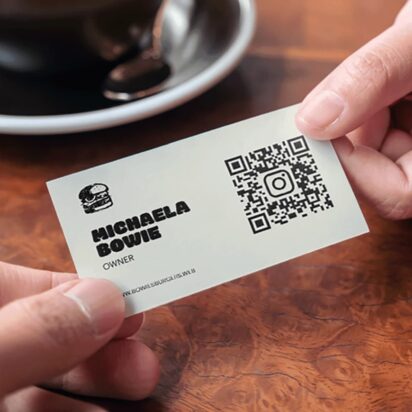
- Add a useful QR code. Link it to a mobile-friendly booking page, menu, portfolio, digital contact card or promotion. Give the code clear space so it does not compete with essential details.

- Follow the canvas guidelines. Extend background colors and images through the bleed, but keep names, logos and contact details within the safe-area guide.

- Review the design and order your cards. Proof the spelling, contact details, URLs and QR code destination. Consult the PDF business card template tutorial when preparing uploaded artwork, then order custom business cards in your preferred stock and finish.
VistaCreate: Advanced visual editing and brand management
VistaCreate suits non-designers who want their cards, social posts and digital promotions to feel connected, carrying the same visual personality across print and online channels. Comparing free business card design software? VistaCreate has a free version to help you get started.
Custom Brand Kits keep logos, colors and fonts in one place, so you won’t have to rebuild your styling each time. Styles can help you explore coordinated combinations, while Background Remover isolates a product photo or portrait for a clean layout.
That consistency helps customers connect your card, website and social graphics with the same business.
Simple document editors for quick DIY business cards
You can create a functional card in standard office software if your design is mainly text and a simple logo. These programs offer less control than dedicated business card design software for print, but they are familiar, often already available and perfectly workable for a straightforward local print job. For guidance before you begin, review how to design a business card.
Microsoft Word layout techniques
Search Word’s template gallery for “business cards” to find preformatted sheets you can personalize. If you are building the layout yourself, turn on gridlines under the View tab, set the card size to 3.5 by 2 inches and place content in fixed-position text boxes so it does not jump around as you edit.

Use consistent spacing rather than tapping the space bar to push elements into position. When printing at home, turn off automatic scaling, print a test page on ordinary paper and hold it against your cardstock to check alignment before using the expensive sheets.
Google Docs table layout workarounds
Google Docs is a useful free option for a basic collaborative design, although it is not a specialist layout program. Create a 2-by-5 table on a letter-size page, set the cells to 3.5 inches wide by 2 inches high and use cell alignment controls to position text and inline logo images.
Browser and printer settings can interpret margins differently, so download the finished document as a PDF before printing. Check the PDF at 100% scale and confirm that every row fits on the page without an unexpected spillover.
Verify page margins, table borders and cell padding before printing from Word or Google Docs. Excess padding can push contact details toward the cutting edge, while visible table borders may appear on the finished cards if you forget to remove them.
Office software is best for uncomplicated designs and short runs. If the card uses edge-to-edge color, intricate graphics or specialty finishing, a print template or professional design program will give you more reliable control.
Professional graphic design software for full creative control
Adobe Photoshop and Illustrator are widely used by professional graphic designers, but they solve different problems. Photoshop is strongest for pixel-based imagery. Illustrator suits logos, type and other artwork that benefits from crisp vector paths.

Adobe Photoshop raster workflows
Photoshop excels at retouching portraits, adjusting product photos, creating textured compositions and working with other raster graphics. Set up the document at its final dimensions plus bleed – 3.75 by 2.25 inches for a standard US card – and use a minimum resolution of 300 pixels per inch from the beginning.
Remember when using Photoshop: Enlarging a small image cannot restore missing detail. Keep text on separate layers, use trim and safe-area guides and avoid rasterizing type until the design is final.
Convert RGB artwork to the printer’s recommended CMYK profile and review bright colors that may reproduce less vividly in ink. Export with the preferred high-resolution PDF settings.
Adobe Illustrator vector workflows
Illustrator is a leading professional choice for business cards because vector artwork remains sharp when resized. It offers fine control over custom logos, typography, kerning, paths, alignment and repeated graphic elements – useful when a brand identity depends on precision.
Create separate artboards for the front and back, add bleed to each and keep live artwork inside the safe zone. Use linked or embedded high-resolution photographs.
Before delivery, check for missing fonts or links. Embed fonts or convert final type to outlines as requested, but first save an editable master copy. A press-ready vector PDF preserves clean edges, color information and bleed settings.
These tools are most valuable when you already know the software, need original artwork or plan to reuse it across other formats.
Ready to perfect your design? Explore more business card design rules and ideas for small business cards.

Technical print setup: Bridging digital software to physical print quality
A card can look flawless on screen and still print with white slivers, soft images or clipped details. These settings bridge the gap between digital design and a polished result. Explore more business card design rules and ideas for small business cards.
Standard dimensions and bleed lines
A standard US business card finishes at 3.5 by 2 inches. Add 0.125 inch of bleed on every edge, creating a 3.75-by-2.25-inch artwork area. Extend any background color, pattern or photo through this outer area so small variations in cutting do not leave an unintended white edge.
Trim lines vs. safe margins
The trim line marks the intended finished edge. Keep essential information within the safe zone, at least 0.125 inch inside the trim, to protect it from normal cutting variation.
Decorative backgrounds go outward into the bleed, while important content moves inward. Avoid using the trim as a narrow visual frame, since a tiny shift can make the border look uneven.
CMYK vs. RGB color profiles
Screens build color with RGB light, while presses use CMYK inks that have a smaller color range. As a result, intense screen colors may become muted or shift when printing. Getting a print proof in the recommended CMYK profile helps you spot changes before printing.
Resolution and press-ready PDF exports
Use images at 300 DPI at final size. A web image may become pixelated in print, and changing its resolution setting cannot create genuine detail.
Export a high-resolution, press-ready PDF with bleed included and fonts embedded or outlined as requested. Before uploading it, open the exported file, not only the original design, and inspect both sides at high zoom for missing graphics, substituted fonts or hairline gaps.

When to skip the business card design software and hire a designer
There is no prize for doing every task yourself. Hiring a designer can be the smarter investment when you lack the time to learn new software, need a distinctive visual identity or keep circling through options without landing on a design that feels right.
With designed business cards now through 99designs by Vista, you can collaborate one-on-one with a professional designer. Share your business story, audience, practical requirements and visual preferences. The designer can translate that brief into a custom, print-ready concept.
To make the collaboration productive, gather your logo files, exact contact details, brand colors, examples you like and any finishing ideas before the project begins. Clear input gives the designer more room to solve the right creative problem, and saves time spent correcting details later.

Choosing the right tool for your business
Choose for the card you need now, not the designer you imagine becoming someday. Use a VistaPrint template for a quick guided route from editing to printing, VistaCreate for brand-consistent assets, office software for a simple local job or Adobe tools for original, technically controlled artwork. If time or confidence is the real constraint, bring in a professional designer and keep your attention on running the business.
FAQs about business card design tools
What is the best business card design software?
The best business card design software depends on your experience and technical needs:
- Best for fast DIY and built-in printing: VistaPrint online editor
- Best for non-designers needing branding tools: VistaCreate
- Best for simple, template-free documents: Microsoft Word
- Best for advanced vector control and professional graphics: Adobe Illustrator
Can I design a business card on my phone or tablet?
Yes. A mobile-friendly online editor or design app can handle template changes, simple logo placement and text updates. Use the largest screen available for your final proof, though, because crowded spacing, tiny type and alignment issues are easier to miss on a phone.
Should the front and back be submitted as separate files?
Follow the printer’s upload instructions. Some workflows accept one multipage PDF with the front as page one and the back as page two, while others request separate files. Label both sides clearly and keep their orientation consistent so the back does not print upside down.
How can I make sure a QR code will scan after printing?
Keep strong contrast between the code and its background, leave clear space around it and avoid placing it across a fold, texture or trim edge. Print a test at actual size and scan it with more than one phone before ordering a large quantity.
What should I save so I can update the card later?
Keep the editable source file, linked images, logo files and font information together, along with a copy of the final print-ready PDF. Name files with a date or version number so you can quickly find the approved design when a phone number, job title or URL changes.