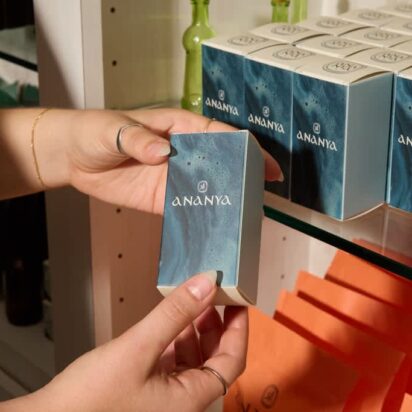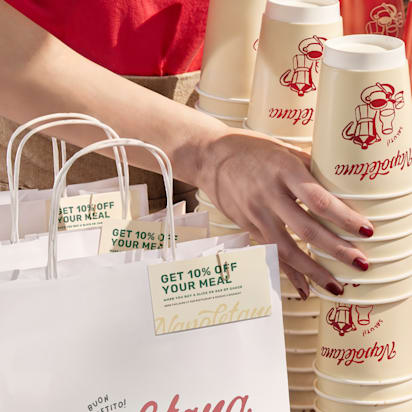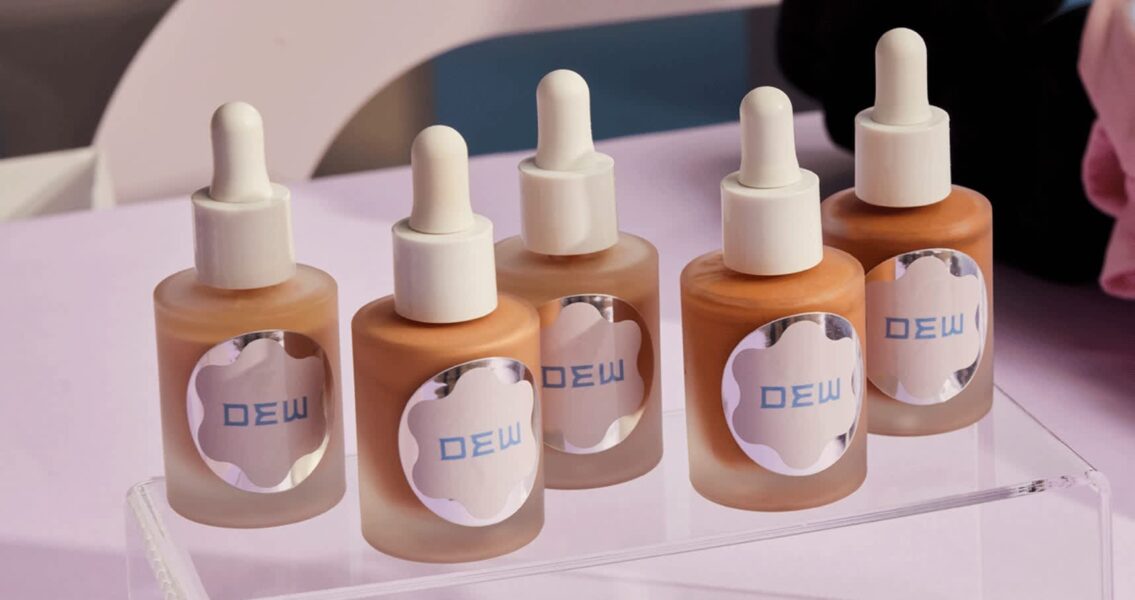
Learning how to make labels starts with measuring your packaging, choosing materials and preparing artwork that prints cleanly. Great product labels build shelf appeal, customer trust and brand recognition, whether you’re selling homemade jam or your next bestselling face cream.
This guide covers container measurements, print setup across different software, material selection and real-world testing. Follow the steps to design and print labels that look polished and stay put.
- Measure containers before selecting label dimensions and shapes.
- Prepare commercial artwork with 300 DPI images, appropriate CMYK output and the printer’s required bleed, commonly 0.125 inches.
- Choose paper or synthetic materials based on exposure to moisture, oils and friction.
- Use rolls for repeat production or sheets for small batches and home printing.
What do I need to make labels?
Gather your brand assets, product copy and printing supplies before designing.
For DIY home printing:
- Design software, such as VistaCreate, Canva or Word.
- Your logo, images, colors and finalized product details.
- A printer with compatible ink or toner and printable labels.
- Plain paper for alignment tests.
- Scissors or a cutting machine for uncut stock.
For professional custom printing:
- Design software or a brief for your designer.
- High-resolution images, logos and finalized product copy.
- Container measurements, quantity and material requirements.
Organize high-resolution logos, regulatory text and vector artwork into a single project folder before opening your design software to streamline file setup.
8 types of labels
These options overlap, so food labels can come on rolls. Explore related types of stickers for inspiration.
1. Product labels
Identify your product, communicate benefits and share important usage details.
2. Shipping labels
Include delivery addresses, tracking codes and handling instructions for packages in transit.
3. Hang tags
Attach with string or hooks to display prices, promotions or care instructions.
4. Roll labels vs. sheet labels vs. cut-to-size labels
Roll labels suit repeated application, while sheets work well for small batches and home printing. Cut-to-size labels arrive individually for handouts or manual application.
| Format | Minimum quantities | Best use cases | Application speed | Cost per unit |
| Roll labels | VistaPrint packaging labels start at 50 | Repeat production, compatible applicators | Fast with a dispenser or machine | Usually falls as volume increases |
| Sheet labels | One blank sheet for DIY, printed minimums vary | Small batches, seasonal packaging | Moderate by hand | Often practical for short runs |
| Cut-to-size labels | Supplier-dependent | Handouts, individual inserts | Slower by hand | Compare quotes for your quantity |
For machine application, confirm roll width, core size and unwind direction before ordering.
5. Barcode labels
Support inventory tracking and retail checkout with machine-readable product identifiers.
6. Security labels
Tamper-evident seals, holograms or unique codes help reveal openings or support authenticity checks.
7. Food packaging labels
Communicate ingredients, allergens, nutrition and other required food information, depending on the product.
8. Eco-friendly labels
Use verified environmental certifications or accurate material claims to communicate sustainability attributes.
Common business label needs
Match your label to the conditions it will face after leaving your packing table.
If your label will be handled a lot
Matte finishes reduce glare and fingerprints. Test scuff resistance because durability also depends on the coating.
If your label has to survive shipping
Use clear text and keep labels away from seams. Flex a sample mailer to check for lifting corners.
If moisture or temperature changes are involved
Choose water-resistant or waterproof stock with suitable adhesive. Refrigerate a sample overnight, then check it after condensation forms.
If you are labeling for tracking or storage
Use large text and the barcode’s required clear border. Check scans under storage lighting.
For limited runs or seasonal packaging
Add a seasonal color or limited-edition message. Order quantities that match expected sales.
If the label doubles as a seal
Choose tamper-evident construction when opening must leave evidence. Test it across the lid or flap.
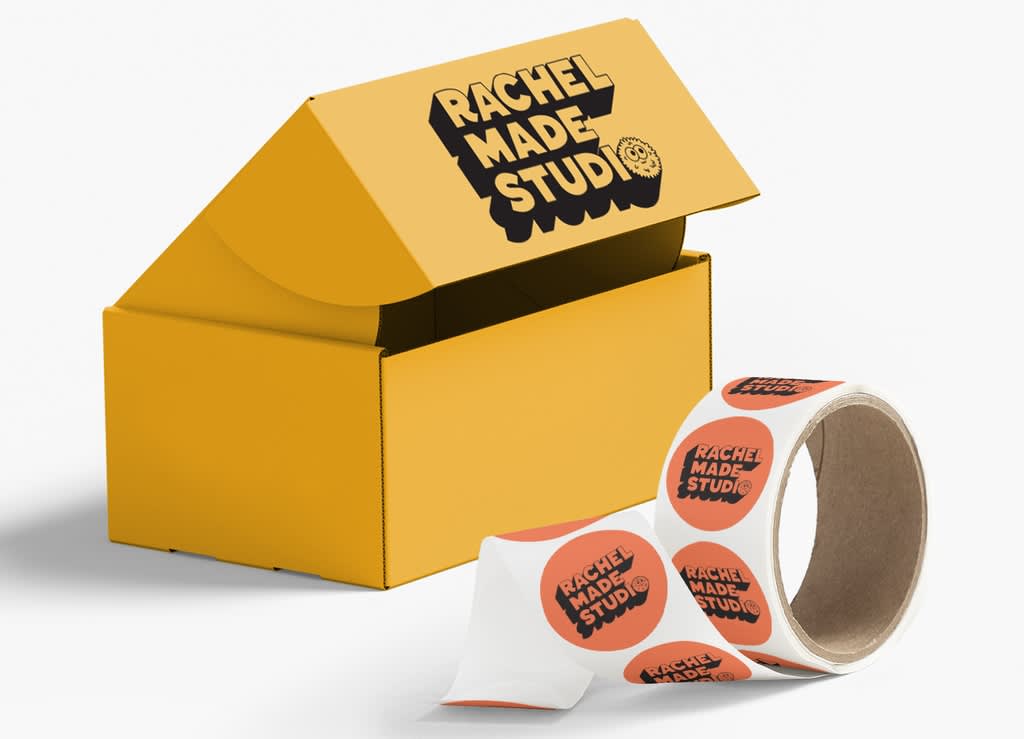
If you need a smooth, bubble-free application
Apply labels to clean, dry containers at the adhesive’s recommended temperature. Work gradually to keep alignment straight and push trapped air toward the edges.
- Remove dust and oils with isopropyl alcohol on compatible surfaces, then let them dry completely.
- Mark alignment with removable masking tape and steady round containers in a simple cradle.
- Peel back part of the liner without touching the adhesive.
- Align the label and smooth outward from the center with a squeegee or felt edge tool.
Follow the supplier’s bonding time before chilling or testing, often about 24 hours.
How to make labels: A step-by-step guide
Measure, select materials and plan your artwork before preparing the print file. Test samples before printing and applying the full batch.
The workflow in six steps:
- Measure: Check the available packaging surface.
- Choose materials: Match stock and adhesive to your product.
- Design: Arrange required copy, branding and QR codes.
- Prepare: Check resolution, bleed and color settings.
- Test: Simulate oil, moisture and shipping wear.
- Print and apply: Proof your batch and label prepared containers.
Step 1: Plan your label content
Prioritize product identification and required information before adding promotional copy. Requirements vary by product and sales market, so check applicable rules before printing.
Essential brand and regulatory details, where applicable:
- Product name, brand name and logo.
- Ingredients or materials, nutrition and allergen information.
- Net quantity, weight or volume.
- Usage instructions, care guidance and safety warnings.
- Manufacturer or distributor details and required address.
- Batch codes, relevant dates and country of origin.
- Retail barcodes and required disclosures.
Optional marketing elements:
- A short description of product benefits.
- A promotional message or reorder link.
- Authorized certification symbols.
- Accurate disposal instructions or environmental claims.
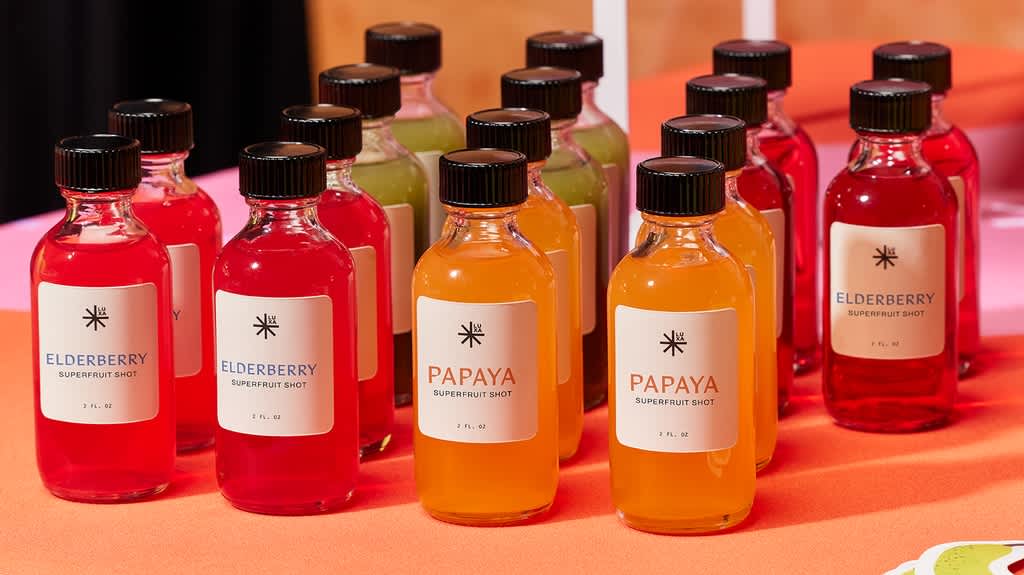
“Phygital” QR code scan mechanics
A dynamic QR code connects packaging with an editable online destination, such as reorders, video tutorials or digital menus. Start with a code at least 0.8 × 0.8 inches, approximately 2 × 2 cm, plus a clear border four modules wide on every side.
Use a dark code on a light background. Keep it off seams and tight curves, add a prompt such as “Scan to reorder,” and test the printed label on several phones. Enlarge dense codes when needed.
Step 2: Choose your label design tools
VistaCreate and Canva offer beginner-friendly label templates. Word suits basic sheet layouts, while Illustrator provides precise vector artwork and print controls. Photoshop works well for image-heavy designs.
Choose a tool that supports your supplier’s file requirements. Match templates to your label dimensions and sheet layout.
Step 3: Choose your label’s size and shape
Measure the usable surface, allowing room around seams, shoulders and edges. Check the fit with a paper mockup before finalizing your design.
- Wrap a flexible sewing tape around a jar or bottle at label height to measure circumference.
- Measure the usable height between curves or ridges. For a wraparound label, subtract your planned seam gap from the circumference.
- Measure tapered tins at the top and bottom of the label area. Unequal measurements may require a curved template or a smaller label.
- Measure a box’s flat panel, avoiding folds.
Try rectangles, circles, squares or ovals.
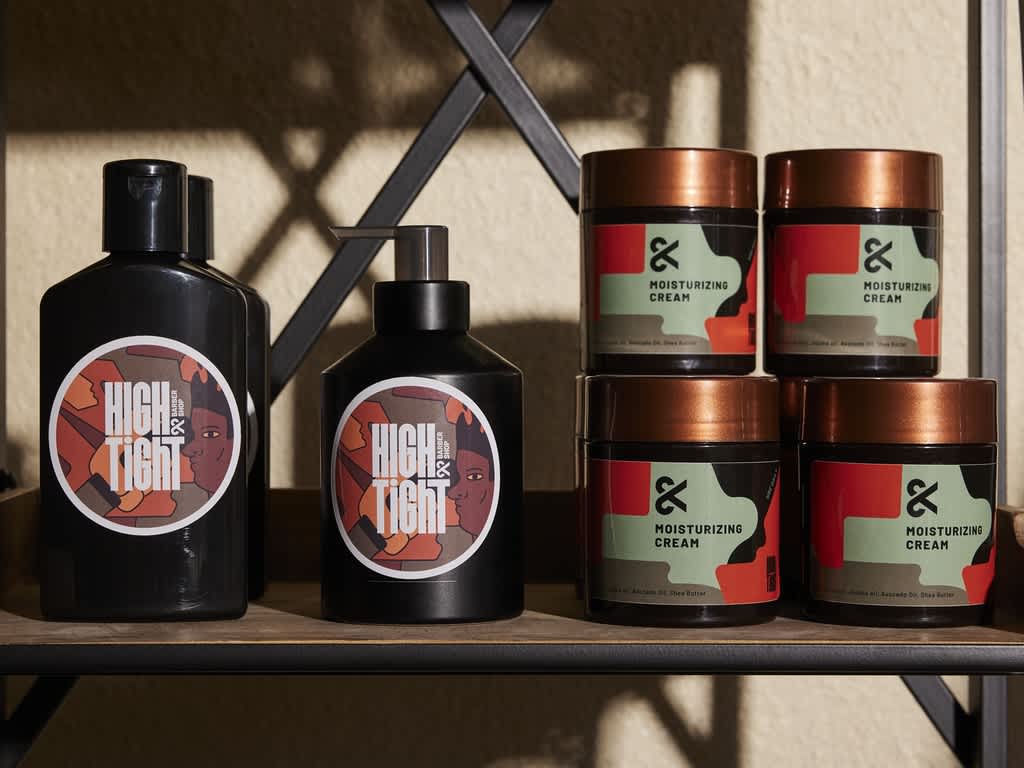
Step 4: Design your label
Prioritize the product name, then benefits and details. Use brand colors consistently and a color wheel to find complementary combinations.
Stick to two or three fonts and leave breathing room. A crowded label can make even brilliant branding hard to read.
Step 5: Place text and ensure legibility
Use short sentences and clear headings. As design starting points, aim for 8pt body text and 12pt or larger product titles, keeping general fine print at least 6pt.
Regulated ingredients, warnings and quantity statements may require larger type or specific letter heights. Follow those requirements, then print at actual size and check readability.
Step 6: Choose your label material
VistaPrint’s sticker materials guide explains the options.
| Material | Advantages | Trade-offs | Best fit |
| Paper | Budget-friendly, often writable | Can tear, absorb moisture or stain | Dry indoor packaging |
| BOPP, a polypropylene film | Resists moisture and tearing | Costs more than basic paper, resistance varies by ink and adhesive | Beverage and cosmetic containers |
| Vinyl | Flexible and durable | Often pricier, unnecessary for short-lived packaging | Curved containers or outdoor exposure |
The face material, ink, adhesive and coating all affect performance. Waterproof stock alone cannot make unsuitable ink waterproof.
Real-world substrate and durability testing
Test samples made with your intended material, ink and finish after the adhesive has bonded:
- Oil test: Rub with your product’s lotion or essential oil. Inspect for stains, smearing and peeling.
- Moisture test: Submerge a labeled empty jar in ice water for two hours if immersion reflects expected use. Check for wrinkles, edge lift and blurred print.
- Scuff test: Rub with corrugated cardboard to simulate shipping friction.
Repeat on several samples and record results, comparing them alongside supplier performance specifications.
Step 7: Choose a label finish and coating
Gloss makes photos and colors pop. Matte reduces glare, while specialty foil adds a premium accent.
Lamination can improve moisture and abrasion resistance. Keep reflective foil away from QR codes and important fine print, then test your chosen finish.
Step 8: Prepare your labels for print
Follow your printer’s template for dimensions, bleed and safe areas. Export a print-quality file with the requested color profile and crop marks only when required.
- Check resolution: Use images at 300 DPI at final print size, technically 300 pixels per inch. A 2-inch-wide image needs 600 pixels, while vector artwork stays sharp without a DPI setting.
- Add bleed: Extend backgrounds beyond the cut edge, commonly 0.125 inches, about 3 mm, on every side. A 2 × 3-inch label then needs 2.25 × 3.25-inch artwork including bleed.
- Protect essential content: Keep text, logos and QR borders inside the safe area. Follow the template, commonly allowing another 0.125 inches inside the trim.
- Check color: RGB describes screen colors, while CMYK describes printing inks. For commercial printing, use the requested CMYK profile or arrange conversion with your printer.
- Export and inspect: Check dimensions, fonts and crop-mark requirements in the final PDF.
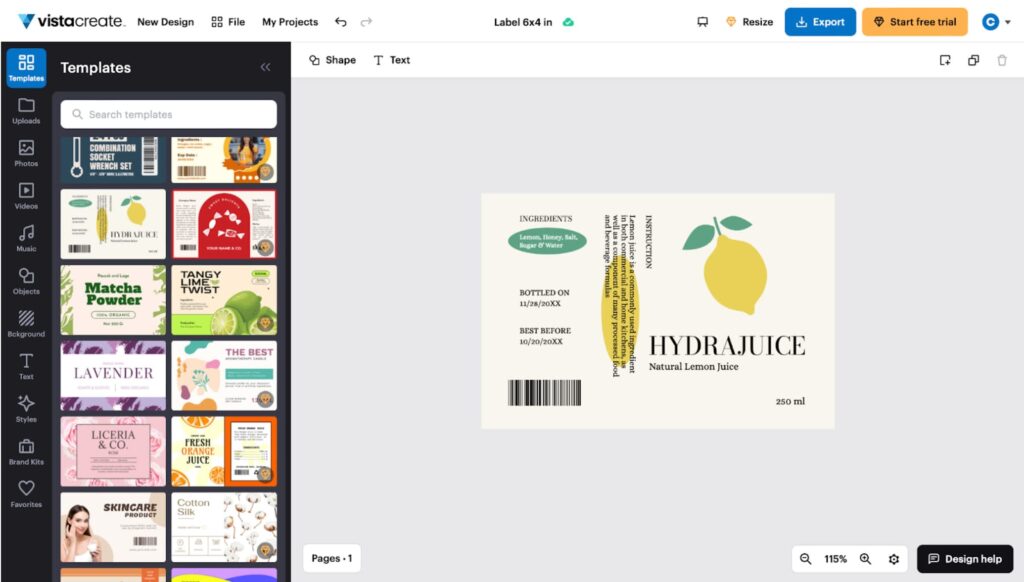
Apply those rules in your chosen software:
- Word: Go to Mailings > Labels > Options and match the stock’s product number. Use high-resolution images and save a print-quality PDF. Ask your commercial printer to check color conversion and bleed.
- Canva: Set the finished size, then use File > Settings > Show print bleed and extend backgrounds. Choose Share > Download > PDF Print, selecting CMYK when available and crop marks if requested.
- Illustrator: Use File > New to set trim size, CMYK and bleed. Check placed-image resolution, then save an Adobe PDF with the printer’s profile and document bleed settings.
- VistaCreate: Use correctly sized label templates or custom dimensions with the required bleed allowance. Select Export > Download as > PDF Print, then confirm color conversion and crop-mark handling with your printer.
Keep home sheet printing aligned to its stock template. Follow the printer driver for color handling.
Step 9: Choose your printer and print setup
| Method | Main advantage | Main trade-off | Best use |
| DIY home printing | Quick edits and small batches | Ink, alignment and labor need attention | Prototypes or short runs |
| Commercial printing | Consistency and specialty options | Minimums and production lead times | Repeat orders or larger batches |
To learn how to print stickers at home, use compatible printable labels and select “Labels” or “Heavyweight” settings as recommended. Print at 100% scale with “Fit to page” disabled.
Check a test print for:
- Alignment against a blank sheet.
- Readable text and acceptable color.
- Dry ink that withstands a finger rub and a damp cloth.
- Working barcodes and QR codes.
For your cost comparison, add materials, ink, setup fees, delivery, wasted labels and application time. Divide by usable labels, then compare equivalent commercial quotes. Consistent labels also strengthen your wider small business marketing collateral.
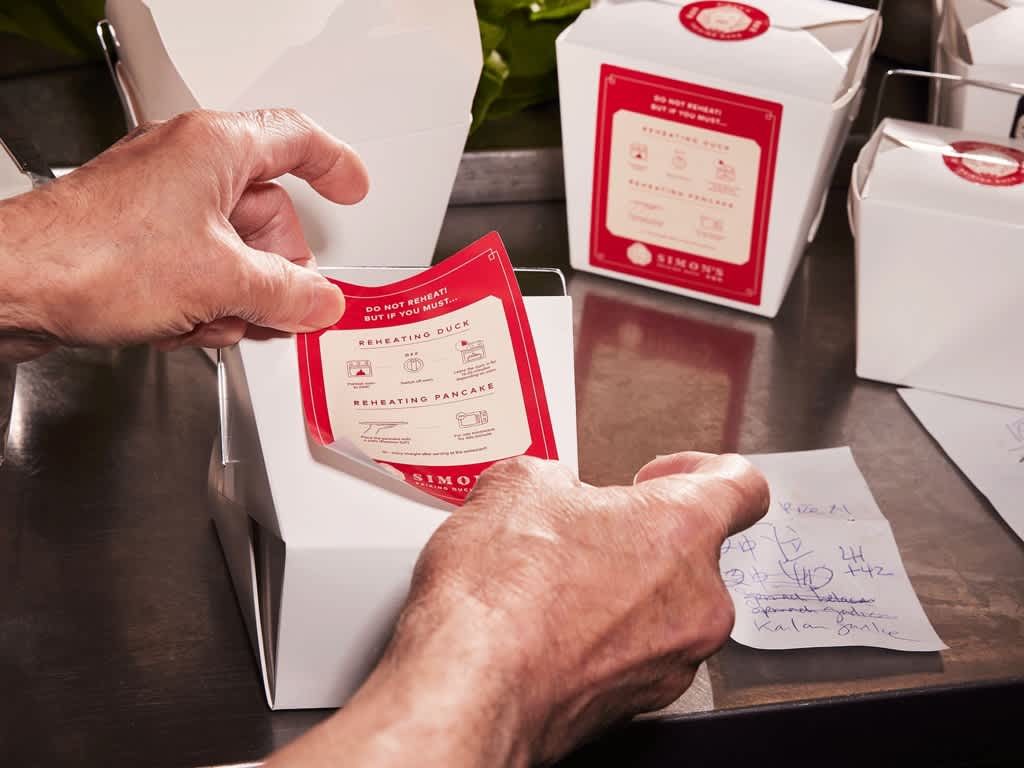
Give your packaging a polished finish
Accurate measurements, suitable materials and careful print preparation help you design and print labels that look great, share essential product details and hold up in customers’ hands. Start with a few samples to check the fit, readability and durability, then save your final artwork and print settings so your next batch is easier to produce and just as polished.
How to make labels FAQs
How should I store unused labels?
Keep labels in their original packaging in a cool, dry place away from direct sunlight. Follow the supplier’s shelf-life guidance and use older stock first so adhesive quality stays dependable.
Can I write batch numbers or dates on printed labels?
Reserve an uncoated writable area or choose stock compatible with your coding equipment. Test your pen or coder before production because glossy coatings can cause handwritten details to smear.
Do clear labels need white ink?
Clear labels may need a white ink layer beneath colored artwork to keep it visible on dark containers. Ask your printer about white ink support and proof the design on the actual package.
How can I keep different product variants organized?
Create a master design with designated spaces for each variant’s name, color and product-specific details. Save clearly named files and check each version against its product before ordering.
Can packaging with a label still be recycled?
Recyclability depends on the container, label, adhesive and available recycling facilities. Confirm compatibility with your supplier and local recycling guidance before adding disposal instructions or recyclability claims.