
AccessibilitySkip to main content
Can you help me complete my checks product order?
Last updated October 12, 2026.
Guide
For security reasons, your checks design and banking information are only visible to you. We can’t access or complete the order, but we can guide you through it.

How to complete your order yourself

1

Select your checks product

From our selection of checks products, find the type of checks you need, such as wallet, laser or 3-to-a-page business checks.
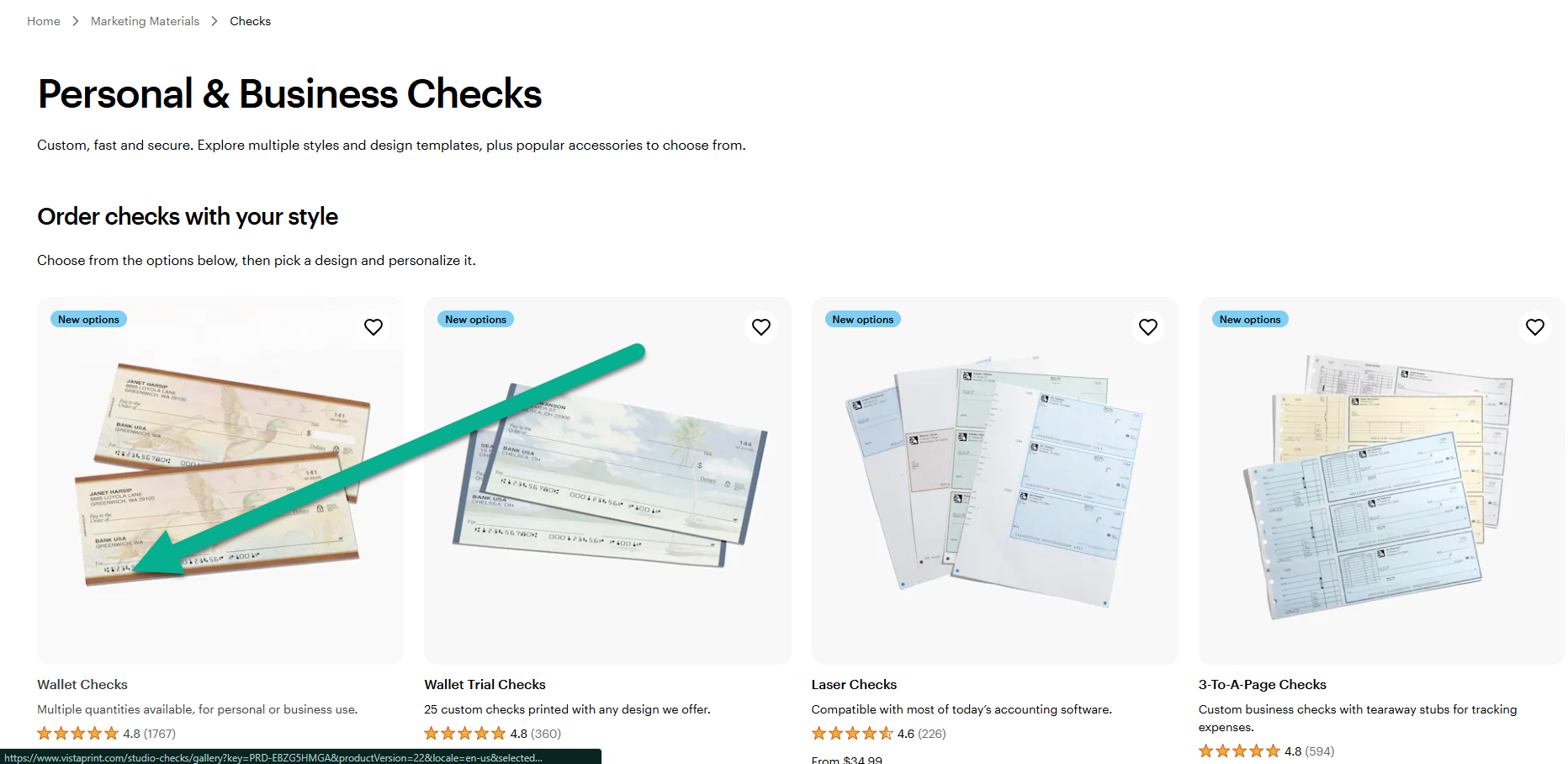
Product selection page featuring different check types, including Wallet Checks, Laser Checks and 3-To-A-Page Checks.
2

Select a design from our checks gallery

Browse the available templates and pick the colors or patterns that match your personal or professional style.
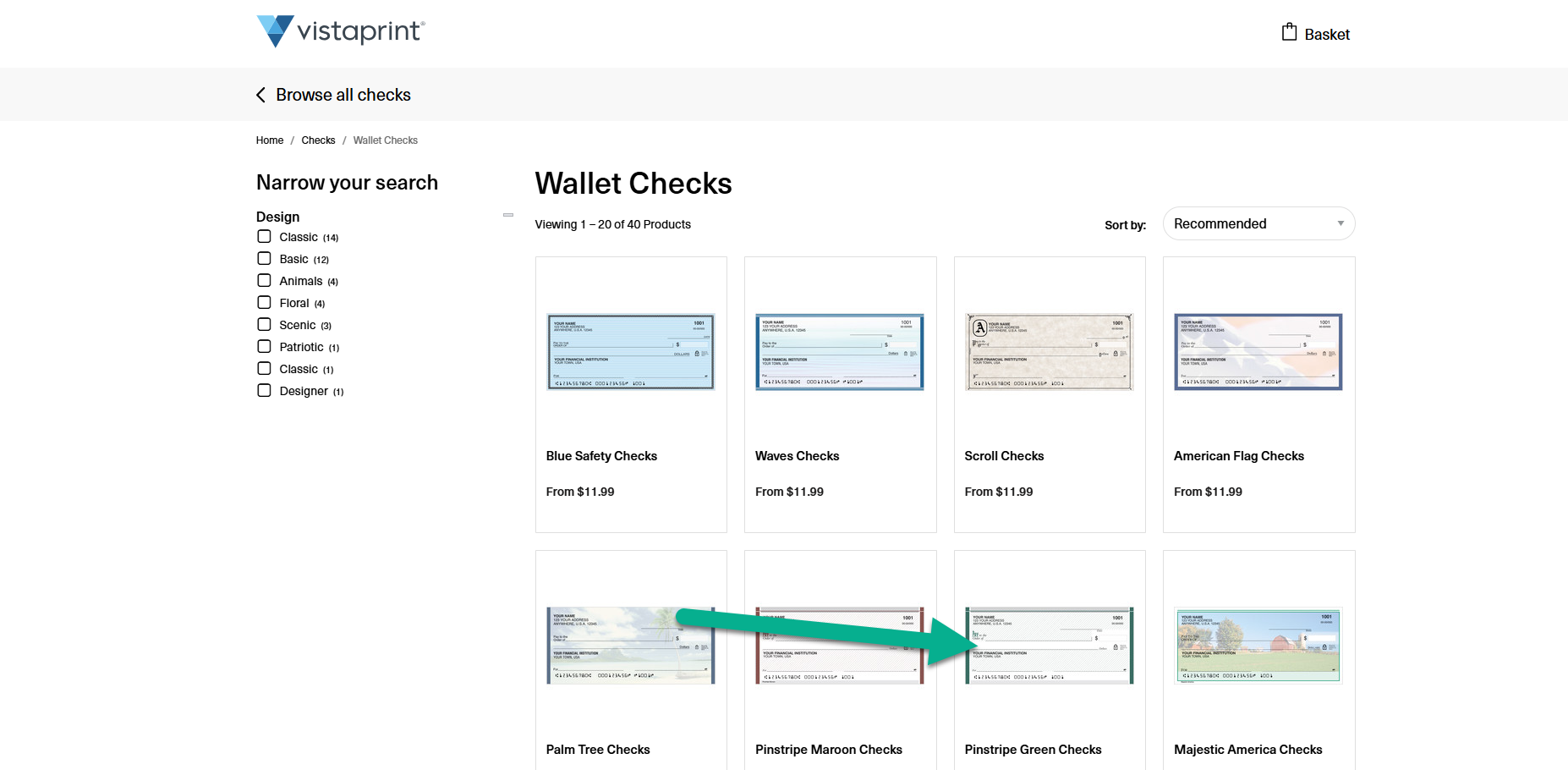
Gallery page showing various check design templates, with Pinstripe Green Checks selected among the options.
3

Select format and quantity

Choose between single or duplicate checks formats and select the quantity you need, then select Personalize to continue.
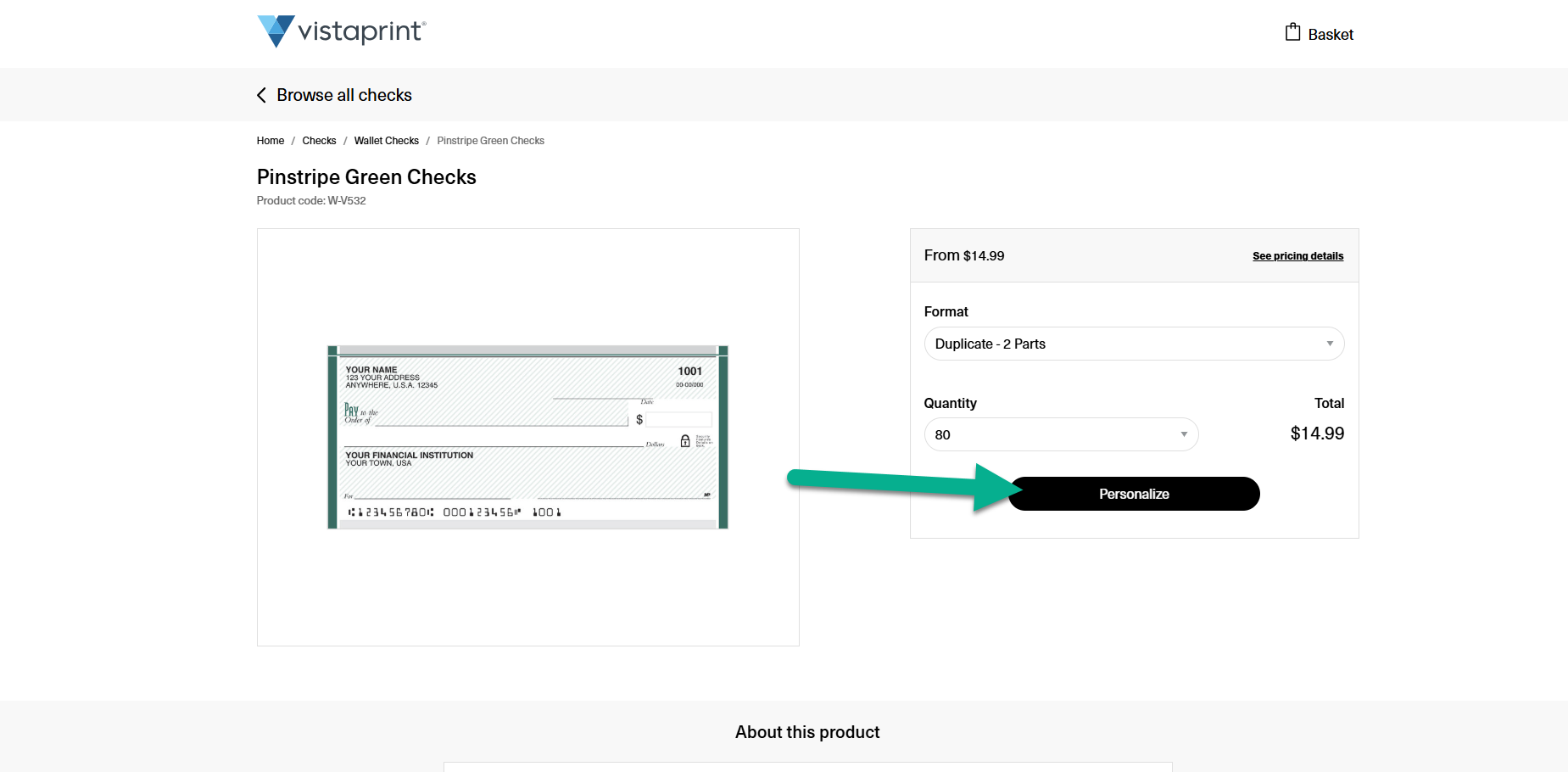
Product page for Pinstripe Green Checks, showing dropdown menus for selecting the check format and a quantity of 80.
4

Add your personal information

Enter the name and address you want printed on your checks. At this stage, you can also personalize the design by selecting a font. 
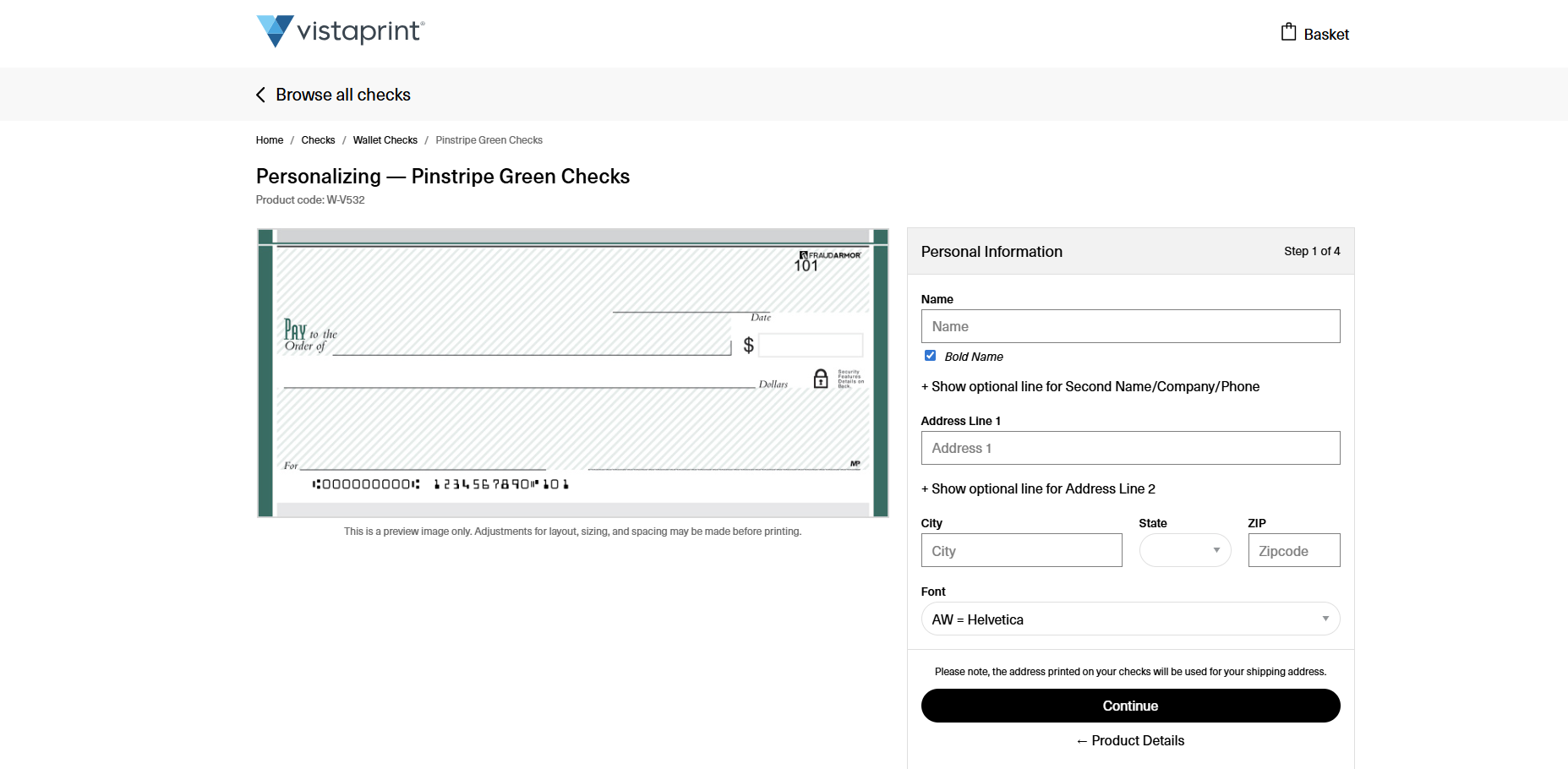
Interface for entering personal information, including name and address fields, to customize a Check.
5

Add your bank information

Enter your routing number, account number and bank name exactly as they appear on your existing checks or your official bank statement. If you're unsure of these numbers, you can usually find them in your online banking portal or by contacting your financial institution. 
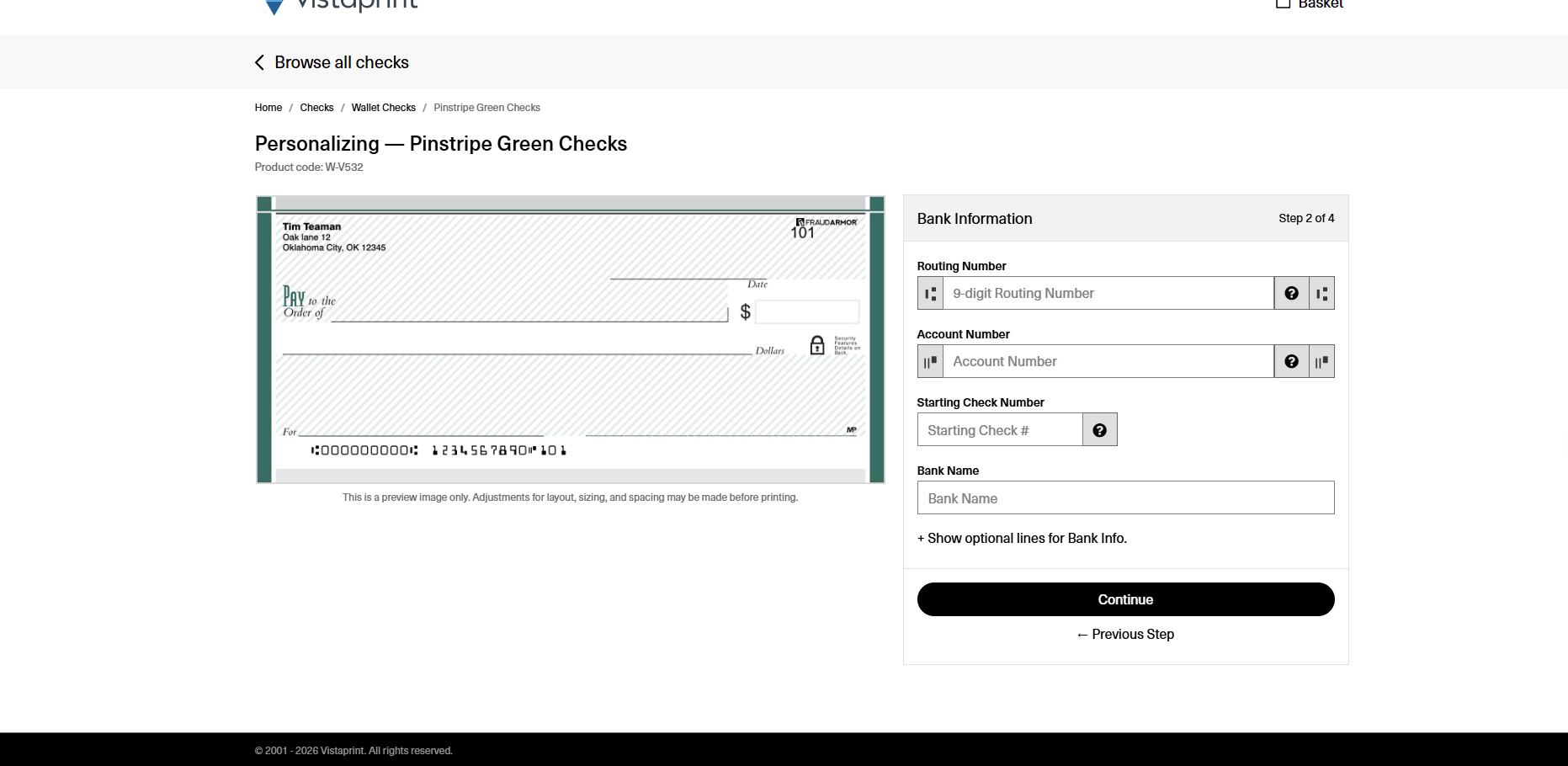
Form for entering bank details, including routing number, account number, starting check number and bank name.
6

Select add-ons

Choose the number of signature lines and decide if you want to include FraudArmor™ protection for an additional charge.
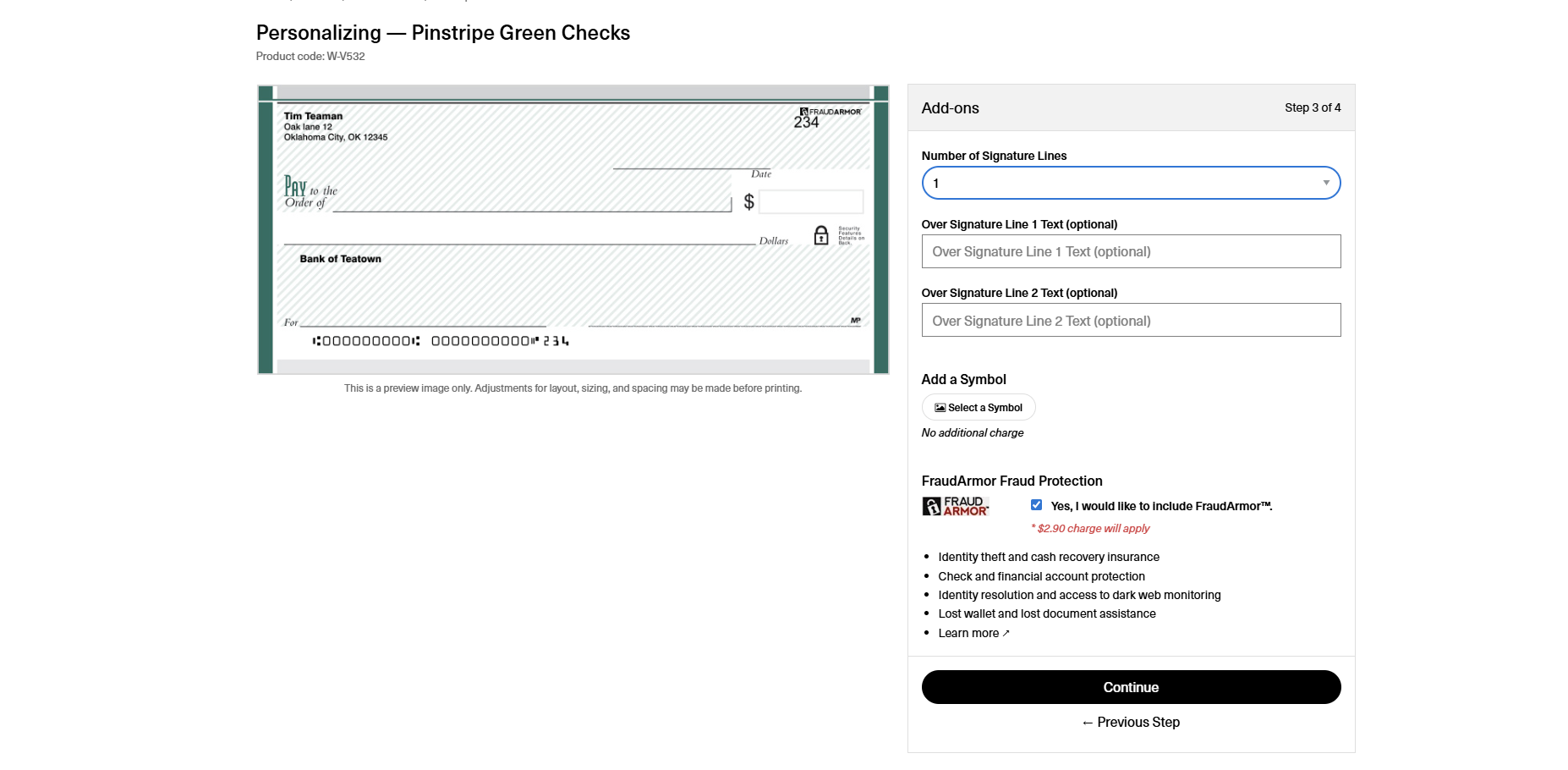
Step for selecting check add-ons, including signature line count, custom text, symbols and FraudArmor protection.
7

Review and add to cart

Confirm that all your details are correct. Once you check the verification box, select Add to Cart.
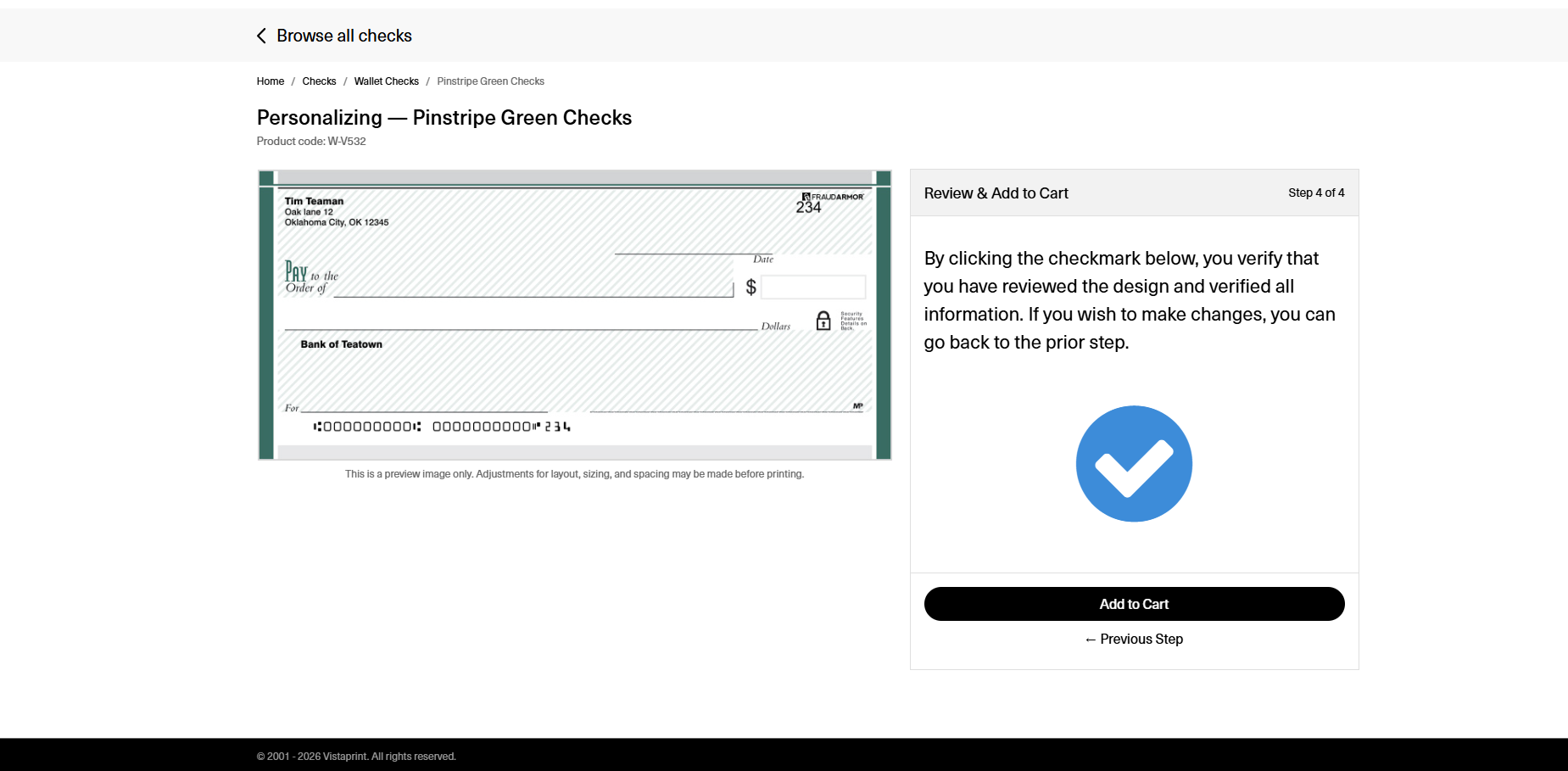
Design review page with a large blue checkmark icon to verify that all personalized information on the check is correct.
8

Complete checkout from the cart

Review the order summary and select your preferred payment method to finalize the purchase.
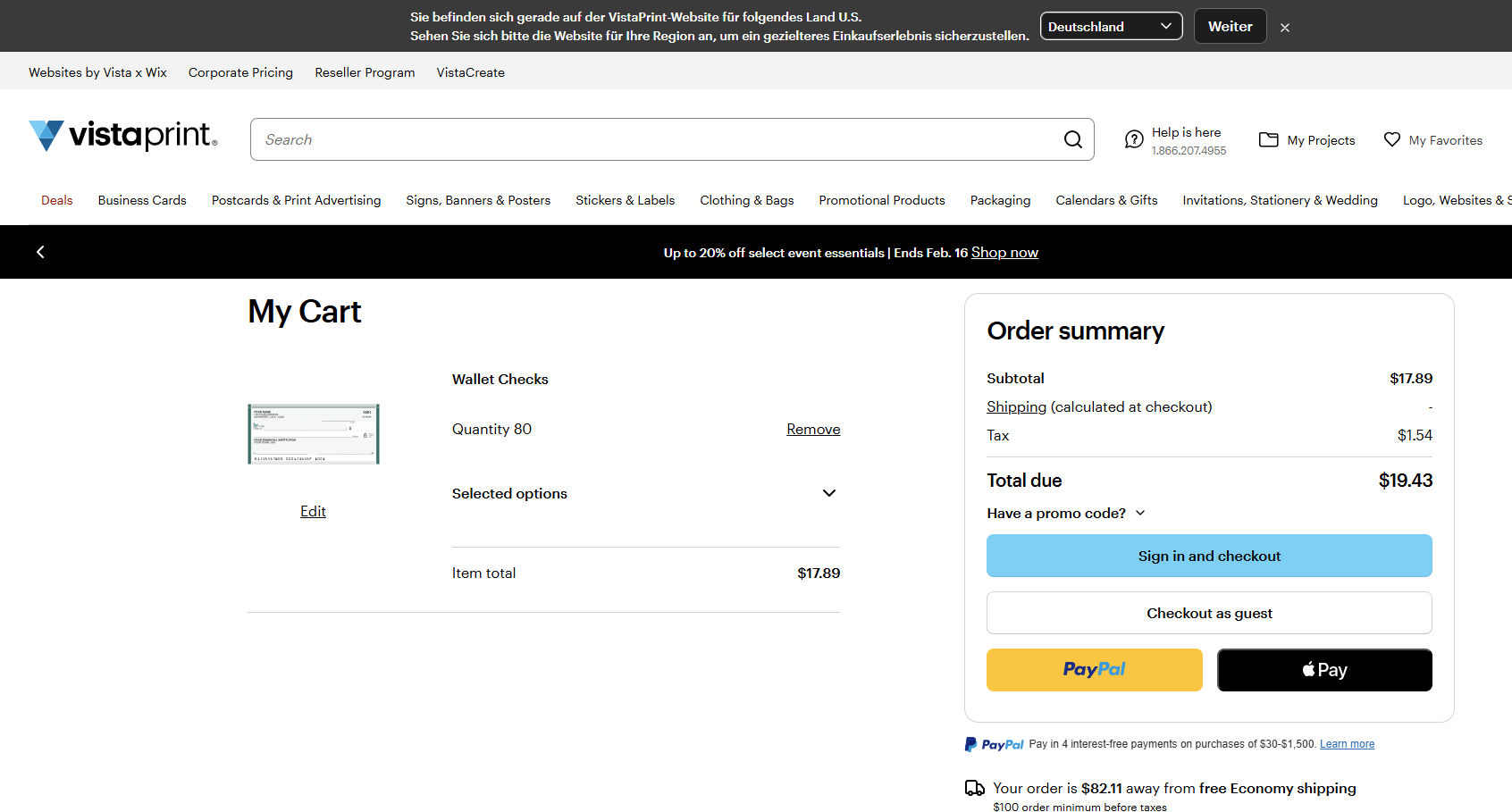
VistaPrint cart page displaying an order summary of 80 wallet checks with a total due and various checkout payment buttons.

Was this article helpful?
Learn how we use your feedback

Connect live with Customer Support

Need help?

Contact Us
