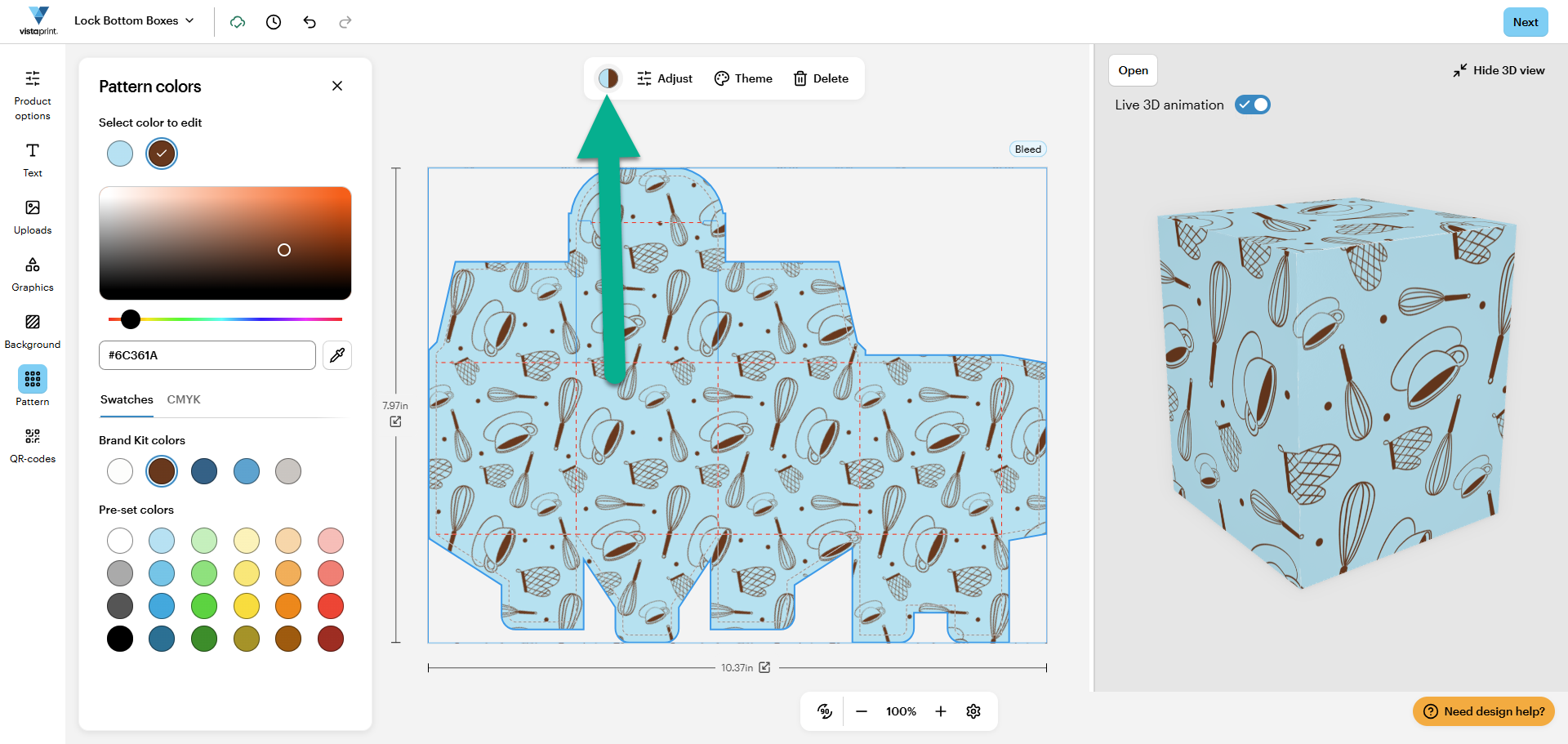
To adjust or change the pattern on your box, follow the steps below:
Select Pattern from the menu
In the packaging design studio, select Pattern from the left-handed menu to open the pattern selection.
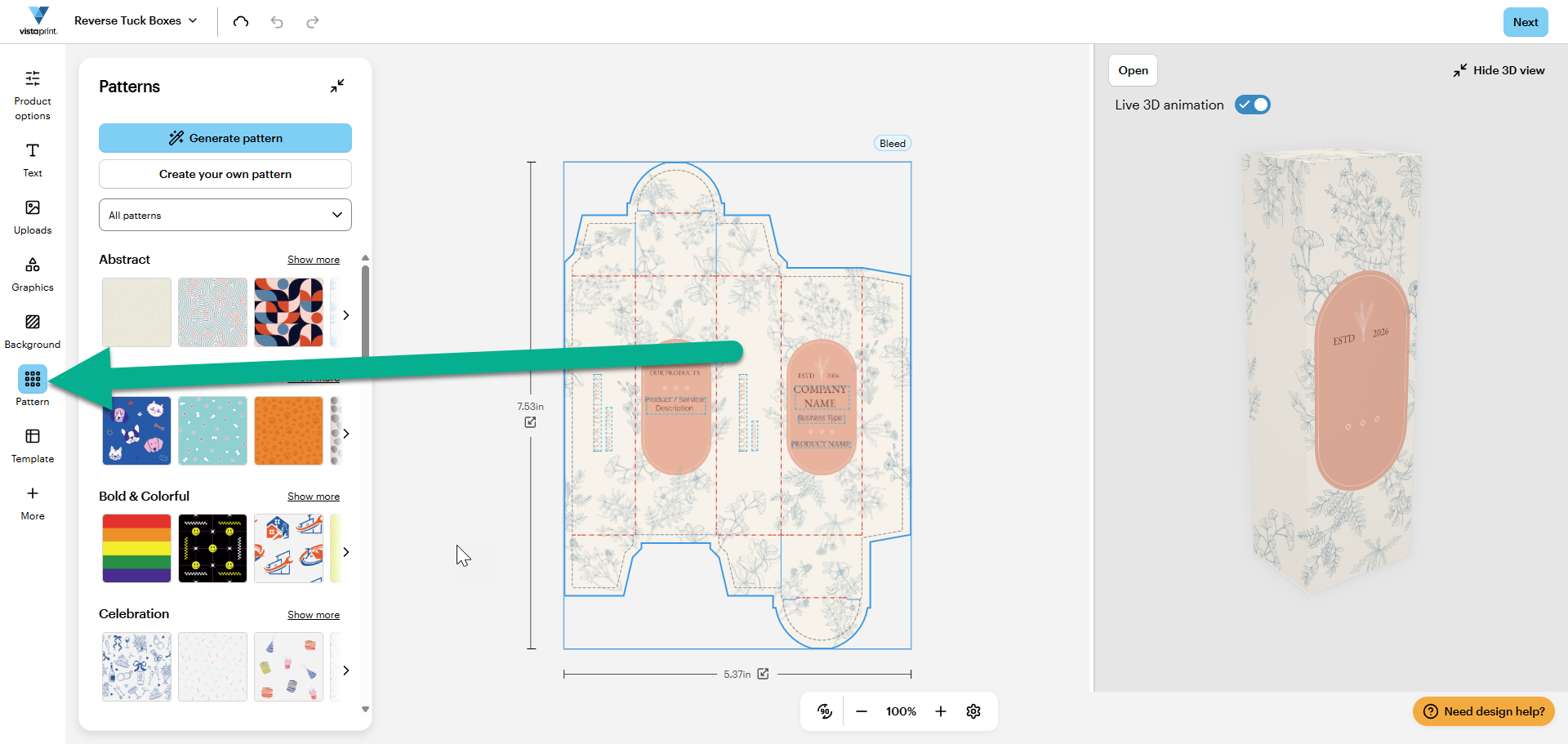
Select a pattern
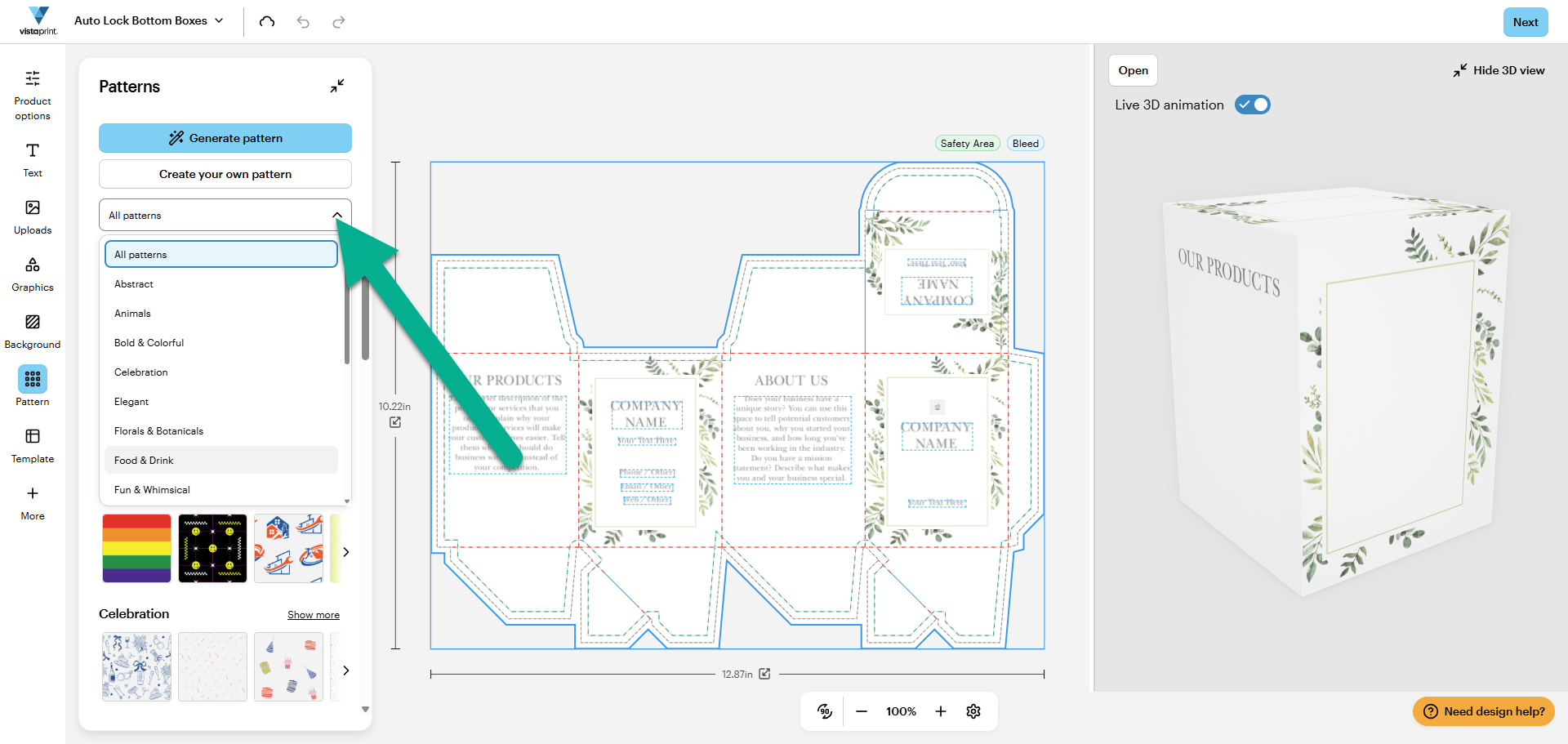
Select a pattern from the pattern gallery. Use the drop-down menu to sort through the available patterns.
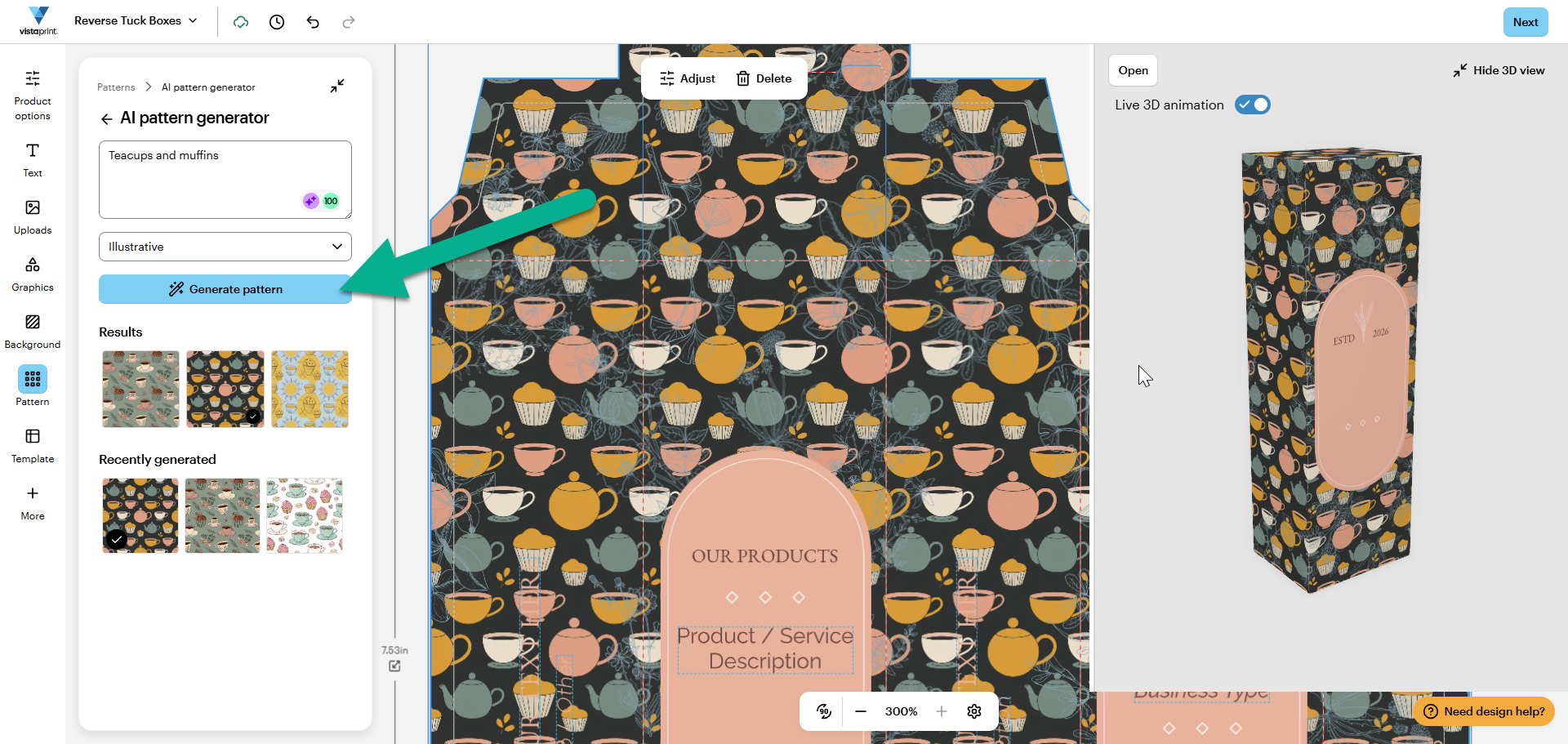
Generate a new pattern or create your own
If you want more creative freedom, you can use our AI pattern generation. Enter a few keywords, select a style and we'll create a pattern for you.
You can also create your own pattern by uploading an image. For example, your logo can become a pattern.
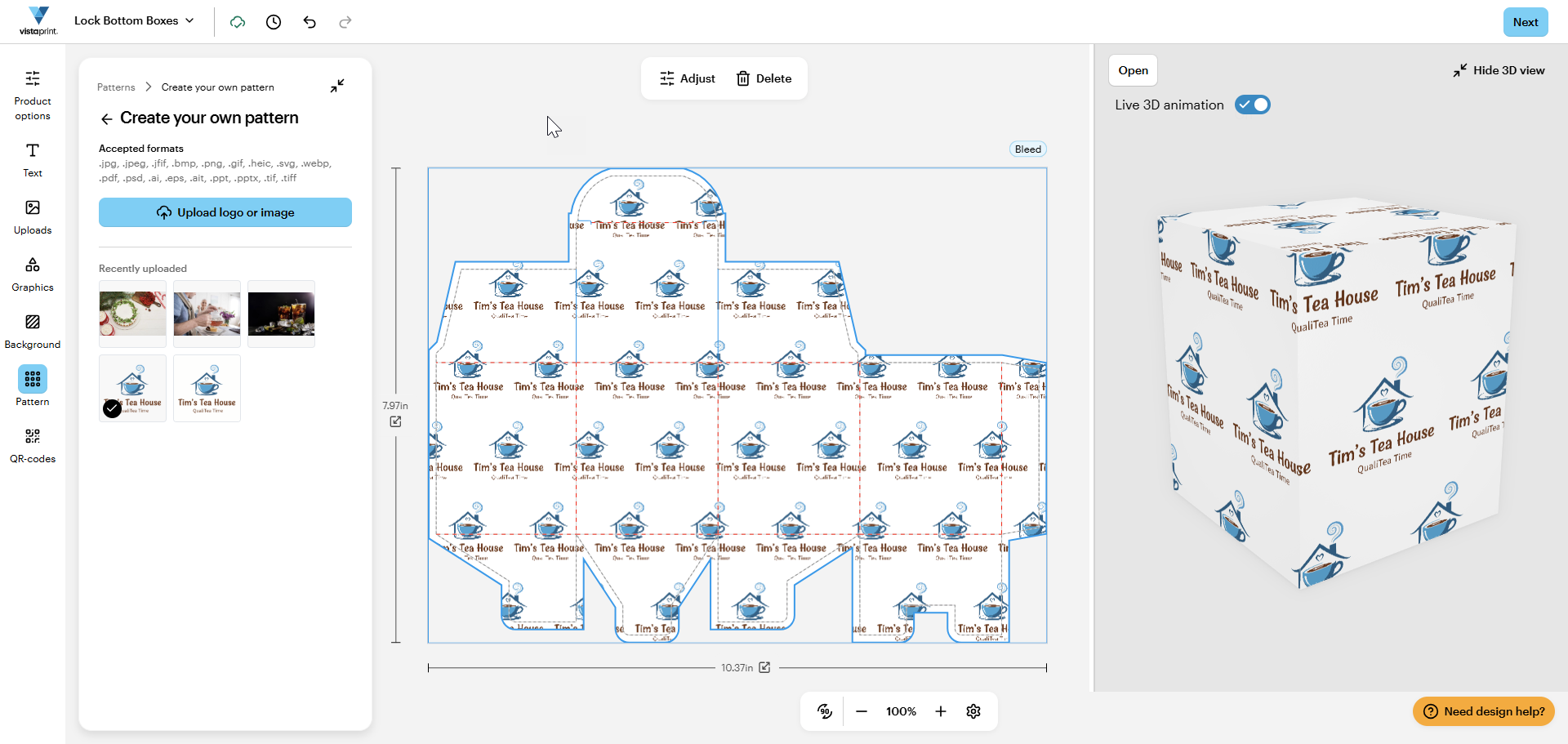
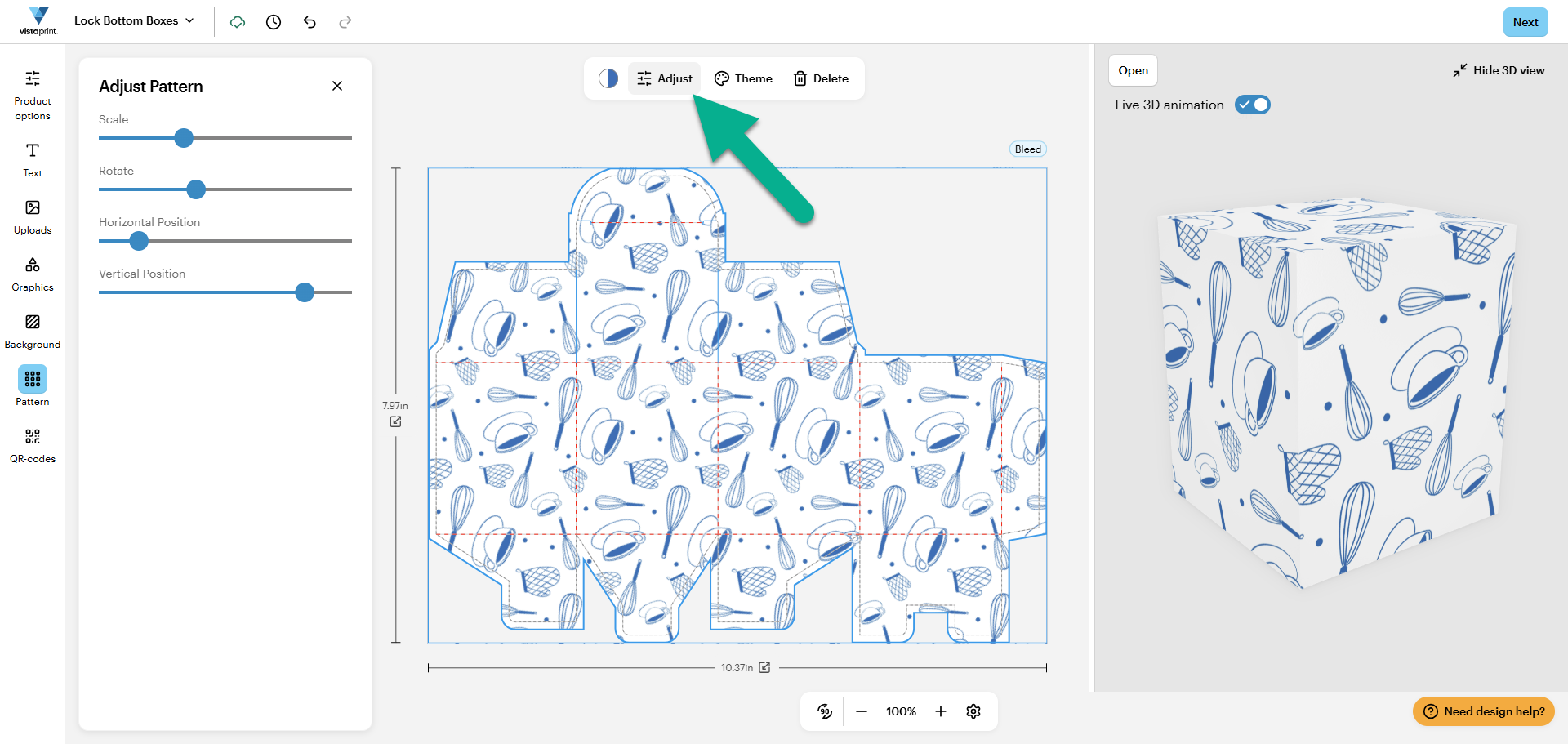
Adjust the size and placement of your pattern
Select Adjust and use the sliders to adjust:
Scale (size)
Rotation
Horizontal position
Vertical position
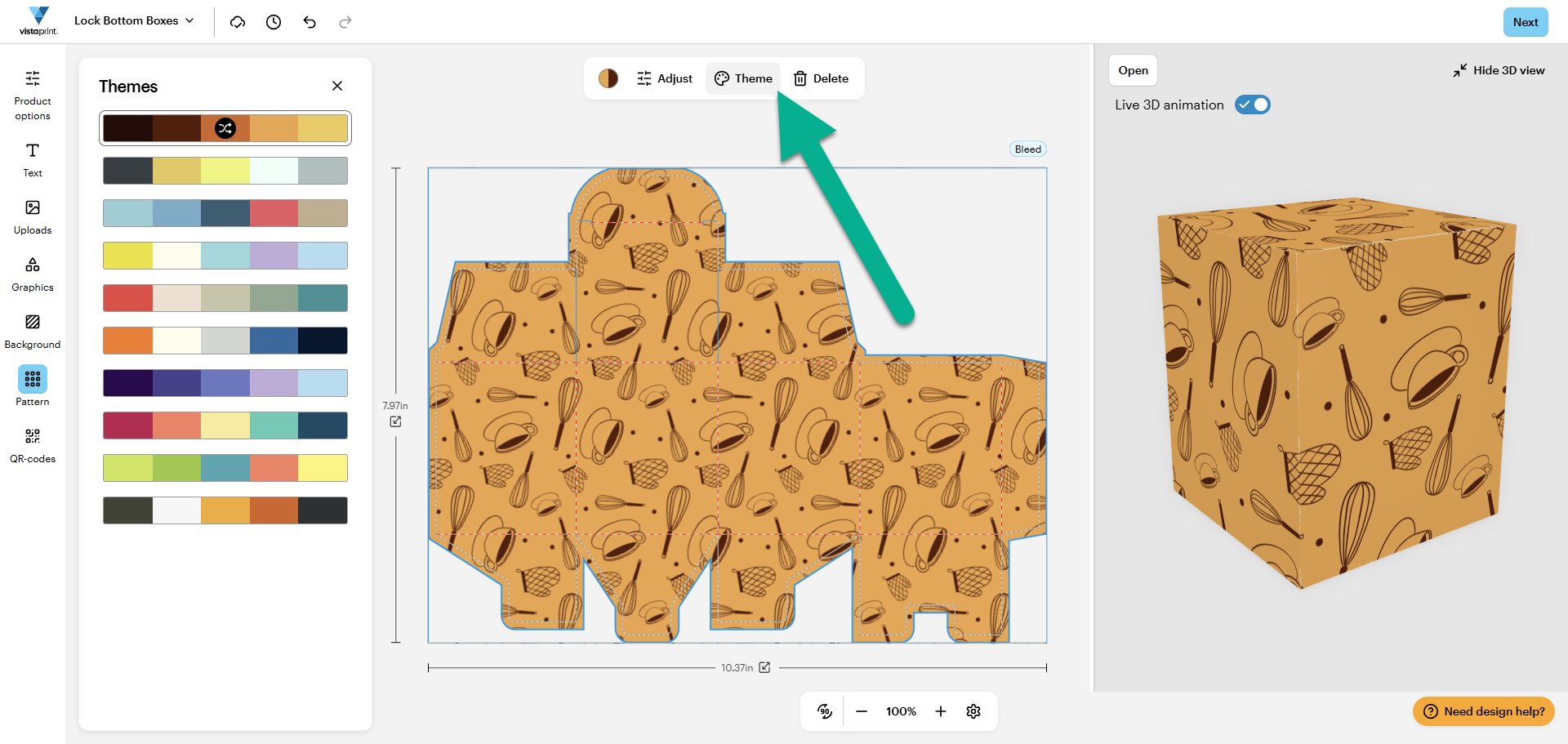
Adjust the colors
If you selected a pattern from the pattern gallery, you can change the colors by selecting a new color theme or by changing individual colors
To select a new color theme, select Theme and pick one of the available color themes.
To change specific colors, select the color swatch in the pattern menu. Then choose one of the pattern colors to edit. You can select a preset color, use a color from your Brand Kit or pick a specific shade using the color selector or HEX code.